Calculate Consensus Score
Overview
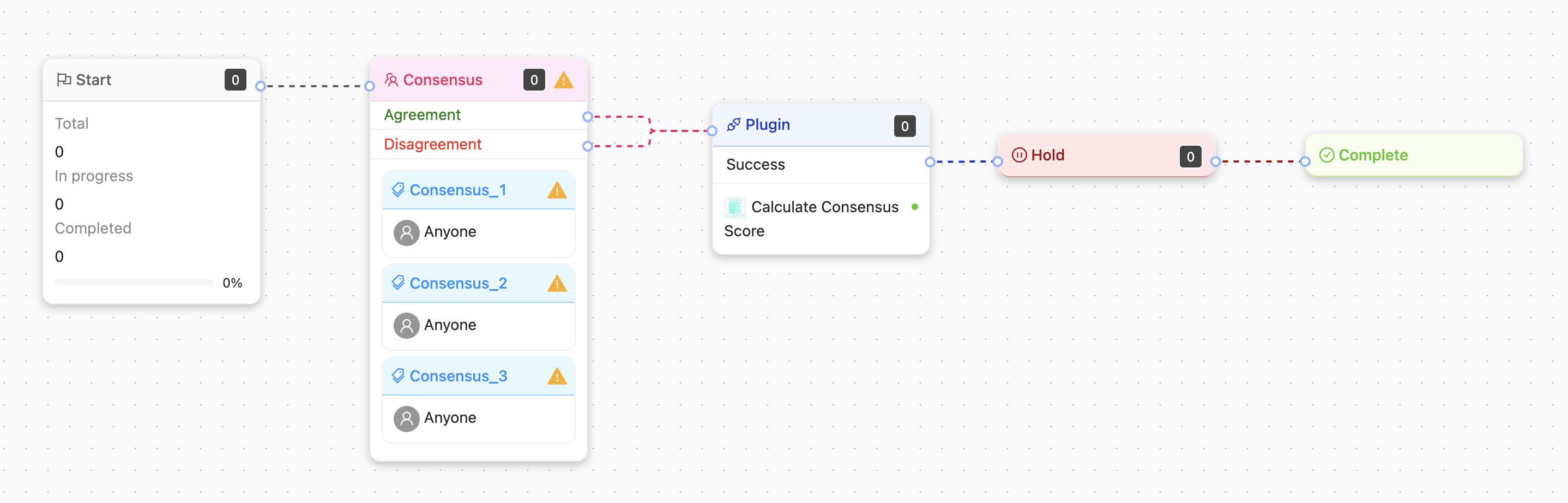
The Calculate Consensus Score plugin is a model plugin designed to measure the agreement between multiple annotators and generate an automated consensus decision based on provided threshold.
It analyzes annotations across annotators, compares them using selected metrics, and produces three structured outputs to support quality evaluation and adjudication workflows.
Calculate Consensus Score
Plugin Functionality
The Calculate Consensus Score plugin analyzes annotations created by multiple labelers and determines how much they agree with each other. It provides a numerical agreement score, a final consensus decision, and a detailed report describing how the result was produced. The plugin is fully configurable using thresholds, adjudication methods, and text comparison metrics.
Calculates a consensus score that shows how much different labelers agree on the same annotation.
Supports using either a single global threshold or class-specific thresholds to determine whether the level of agreement is sufficient. Based on the selected threshold, the plugin produces a consensus decision indicating whether the required agreement has been reached.
Supports multiple adjudication methods for determining how the final output should be formed (without affecting the consensus score itself):
"none": Does not generate a final merged annotation, only returns the consensus score, decision and report.
"merge": Combines all labelers’ annotations into a single unified result.
"best_labeler": Selects the annotation from the labeler who shows the highest overall consistency.
"max_voting": Uses majority voting to decide which annotation should be selected.
"union": Includes all annotation answers/regions contributed by any labeler.
"intersection": Keeps only the anwers/regions where multiple labelers agree or overlap.
Generates a consensus report that explains how the score and decision were produced.
Can compare text annotations using different metrics, "exact_match" for strict comparison, "case_insensitive_match" to ignore letter case, and "bleu_score" for similarity-based comparison
Allows excluding specific annotation types using ignored_schema_ids, so these schemas do not affect the score.
Outputs
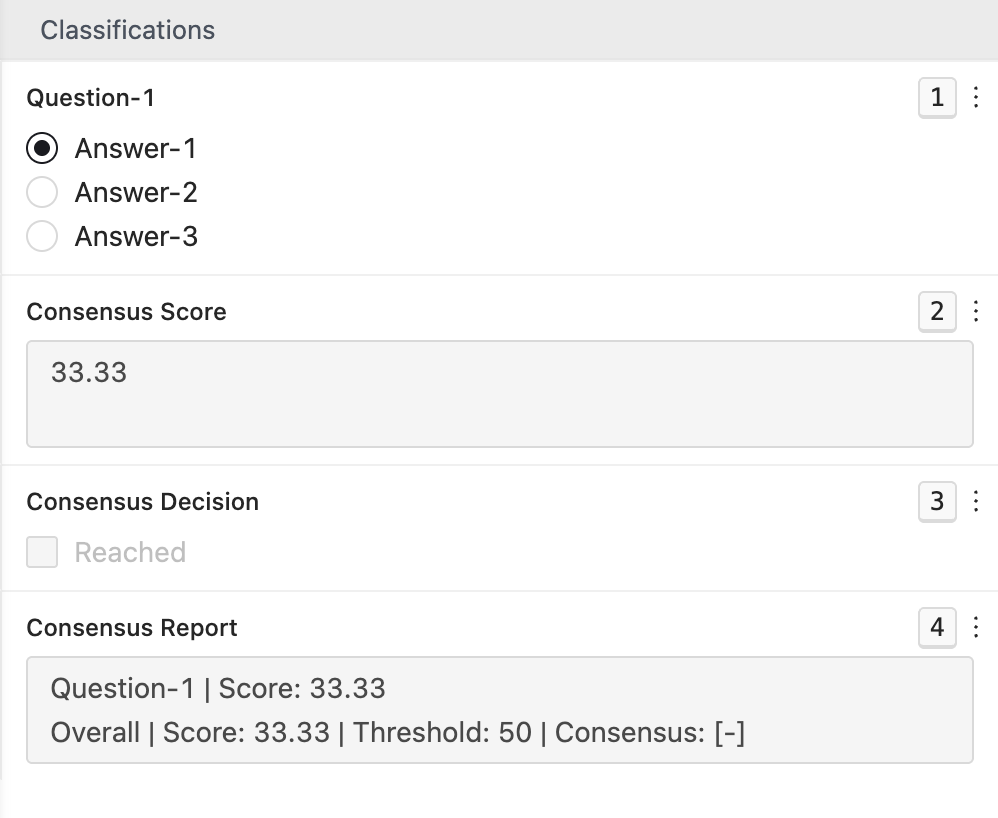
The plugin generates three key outputs that help you understand how well annotators agree and how the final consensus was determined. These outputs provide both a high-level summary and detailed insight into the consensus evaluation process.
Consensus Score: Shows the calculated agreement level between annotators, expressed as a percentage value.
Consensus Decision: Indicates whether the required agreement threshold has been met, resulting in a final consensus outcome (e.g., accepted/rejected, true/false).
Consensus Report: Provides a descriptive summary of the consensus process, including class-level agreement details and contributing annotators.


Adjudication Methods
The plugin supports several adjudication methods that determine how the final annotation output is constructed after the consensus score is calculated. These methods define how the plugin should select annotations when producing the final result.
A A A
A A A
A
A
A
A
A A B
A A B
A
A
A B
A
A B C
A B C
A
-
A B C
-
Supported Data Types
Compatible with all data types available in AngoHub.
Supported Annotation Tools
Classifications
Radio
Checkbox
Single-Dropdown
Multi-Dropdown
Tree Dropdown
Text
Nested Classifications
Multiple Classifications
Tools
Bounding-Box
Polygon
Segmentation
Entity
Point
Brush
Voxel Brush
Following tools are not supported by the plugin:
Rotated Bounding Box, Polyline, PDF, Message, Angle
Nested Classifications within tools
Relations
Plugin Configuration
The Overwrite setting in model plugins controls whether existing annotations are replaced or kept. When enabled, the plugin replaces all existing annotations with new model predictions; when disabled, it simply adds the new results without deleting what’s already there.
The Class Mapping setting defines how the model’s predicted classes are linked to your project’s label schema. Follow these steps to prepare your class mapping.
In the "Class Mapping" field, open the left dropdown, and pick from one of the classes the plugin can detect.
Open the right dropdown, and pick from one of the tools you have created in your project.
Click on the "plus" button to finalize the pairing. Now the object class and your bounding box tool are linked. The plugin will use the selected bounding box tool to label the selected category.
Starting again from Step 1, link as many tools to categories as needed.
You may vary a number of settings related to your export from the Config JSON field. Each option is detailed below:
{
"consensus_threshold": 50,
"adjudication_method": "none",
"text_metric": "exact_match",
"ignored_schema_ids": [],
"include_key_frames_only": false
}"consensus_threshold": Defines the minimum similarity or agreement percentage required for annotations to be considered in consensus.
Example:
"consensus_threshold": 50
"consensus_threshold": [{"schemaId": "101", "threshold": 50}, {"schemaId": "102", "threshold": 80}]
"adjudication_method": Controls how annotations from different annotators are merged into a single, consolidated result.
Options:
"none"
"merge"
"best_labeler"
"max_voting" [in progress]
"union" [in progress]
"intersection" [in progress]
"text_metric": Defines the metric used to compare text-based annotations.
Options:
"exact_match"
"case_insensitive_match"
"bleu_score"
"ignored_schema_ids": Specifies which classes should be excluded from the consensus calculation.
Example:
"ignore_schema_ids": ["12345", "12346"]
"include_key_frames_only": Specifies whether only key frames should be included in the metrics calculation. (For video assets only)
Example:
"include_key_frames_only": true
"include_key_frames_only": false
Last updated