Batch & Stage Statistics
Overview
The Batch & Stage Statistics plugin enables you to generate and download comprehensive reports containing how tasks move through stages in your workflow. With this plugin, you can quickly see current batch status, historical stage visits by date, user-based contributions, overall workflow movement, and flow transitions between stages.
Batch & Stage Statistics
Plugin Functionality
The Batch & Stage Statistics plugin generates a set of structured CSV reports that provide multiple views into workflow. These reports include current batch-stage counts, date-based stage visits, flow transitions between stages, annotator-based activity, and overall workflow statistics. Together, these tables help teams track progress, analyze throughput, identify bottlenecks, and gain clear visibility into how work moves through each stage of the workflow.

Running the Batch & Stage Statistics plugin on your project generates multiple CSV files:
[CURRENT] File
Displays the current batch-stage counts. This table shows how many items are currently present in each stage for every batch, along with the total count per batch.
[DATE] File
Displays stage visits based on date. This table allows you to analyze how batches progressed through stages over time and when stage activity was completed.
[FLOW] File
Displays flow counts from one stage to another. This table captures transitions between stages (for example: Start > Label: 10). This helps visualize and analyze how work items move through the pipeline.
[[email protected]] File
Displays stage visits based on annotator. This table breaks down stage activity per user, making it easy to understand individual contributions and workload distribution.
[OVERALL] File
Displays overall stage visits across all users and batches. This table provides a high-level summary view of stage activity for reporting and performance analysis.
The CSV files contains following columns:
Batch-1
0
0
0
10
10
Batch-2
0
0
0
10
10
Batch-3
0
0
5
5
10
Total
0
0
5
25
30
Batch-1
2020-01-01
10
10
10
10
0
10
40
Batch-2
2020-01-01
10
15
15
10
5
10
50
Batch-3
2020-01-01
10
10
10
5
0
5
40
Start > Label
30
Label > Review
35
Review > Label
5
Review > Complete
25
Batch-1
10
10
10
10
0
10
40
Batch-2
10
15
15
10
5
10
50
Batch-3
10
10
10
5
0
5
40
Total
30
35
40
25
5
25
130
Batch-1
10
10
10
10
0
10
40
Batch-2
10
15
15
10
5
10
50
Batch-3
10
10
10
5
0
5
40
Total
30
35
35
25
5
25
130
Supported Data Types
Compatible with all data types available in AngoHub.
Supported Annotation Tools
Compatible with all annotation tools available in AngoHub.
Plugin Configuration
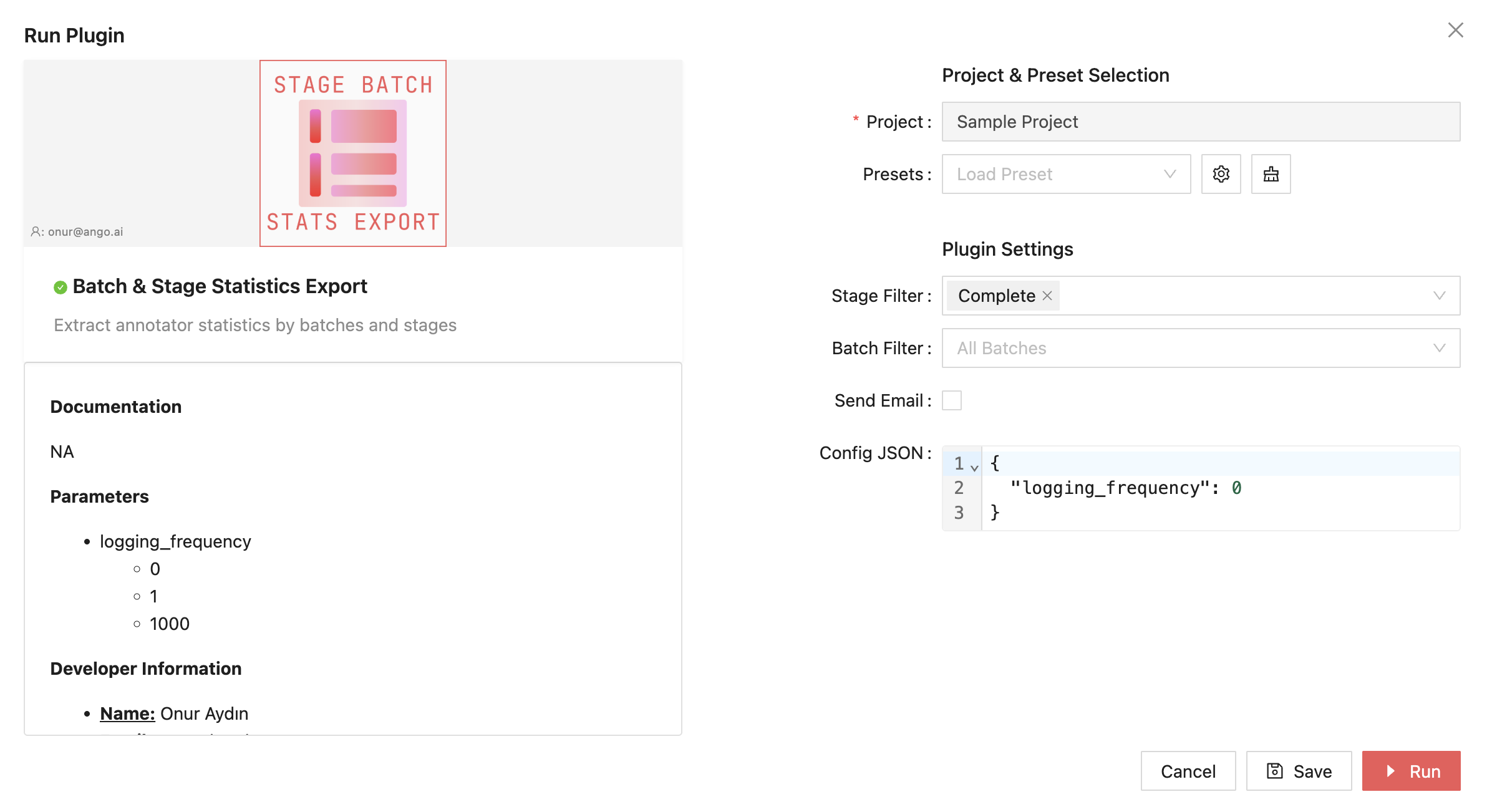
From the Stage Filter field, pick the stages containing the tasks you'd like to get the export of. Similarly, from the Batch Filter field, you may select one or more batches the tasks of which will be exported. By default, all tasks are exported from all batches.
If you wish to receive an email when the export is complete, toggle Send Email on.
You may vary a number of settings related to your export from the Config JSON field. Each option is detailed below:
"logging_frequency": Defines how frequently progress logs are displayed; setting this value to 0 disables logging entirely, while any positive integer enables logging at the specified interval. For more information on how to view plugin logs, see here.
Example:
"logging_frequency": 0
"logging_frequency": 100
Last updated