> For the complete documentation index, see [llms.txt](https://docs.imerit.net/llms.txt). Markdown versions of documentation pages are available by appending `.md` to page URLs; this page is available as [Markdown](https://docs.imerit.net/plugins/first-party-ango-plugins/dall-e.md).
# DALL-E
{% hint style="info" %}
If you do not provide your own OpenAI API key, the DALL-E plugin is currently subject to the following global rate limits throughout Ango Hub:
* Images per Minute: 5
Please be mindful of the above global limits when running the plugin without providing your own key.
{% endhint %}
The DALL-E plugin allows you to generate assets for your project with a prompt you specify.
## Using the Plugin
From the Plugin Directory, search for the name of the plugin and install the plugin to your organization. More information on installing plugins can be found in [How to Add Plugins to Your Organization](/plugins/introduction-to-plugins/how-to-add-plugins-to-your-organization.md).
The name of the plugin is `DALL-E`. The plugin author is `onur (at) imerit.net`.
### Usage
Navigate to the project where you'd like to generate the assets.
Enter the *Settings* tab, then the *Plugins* section.
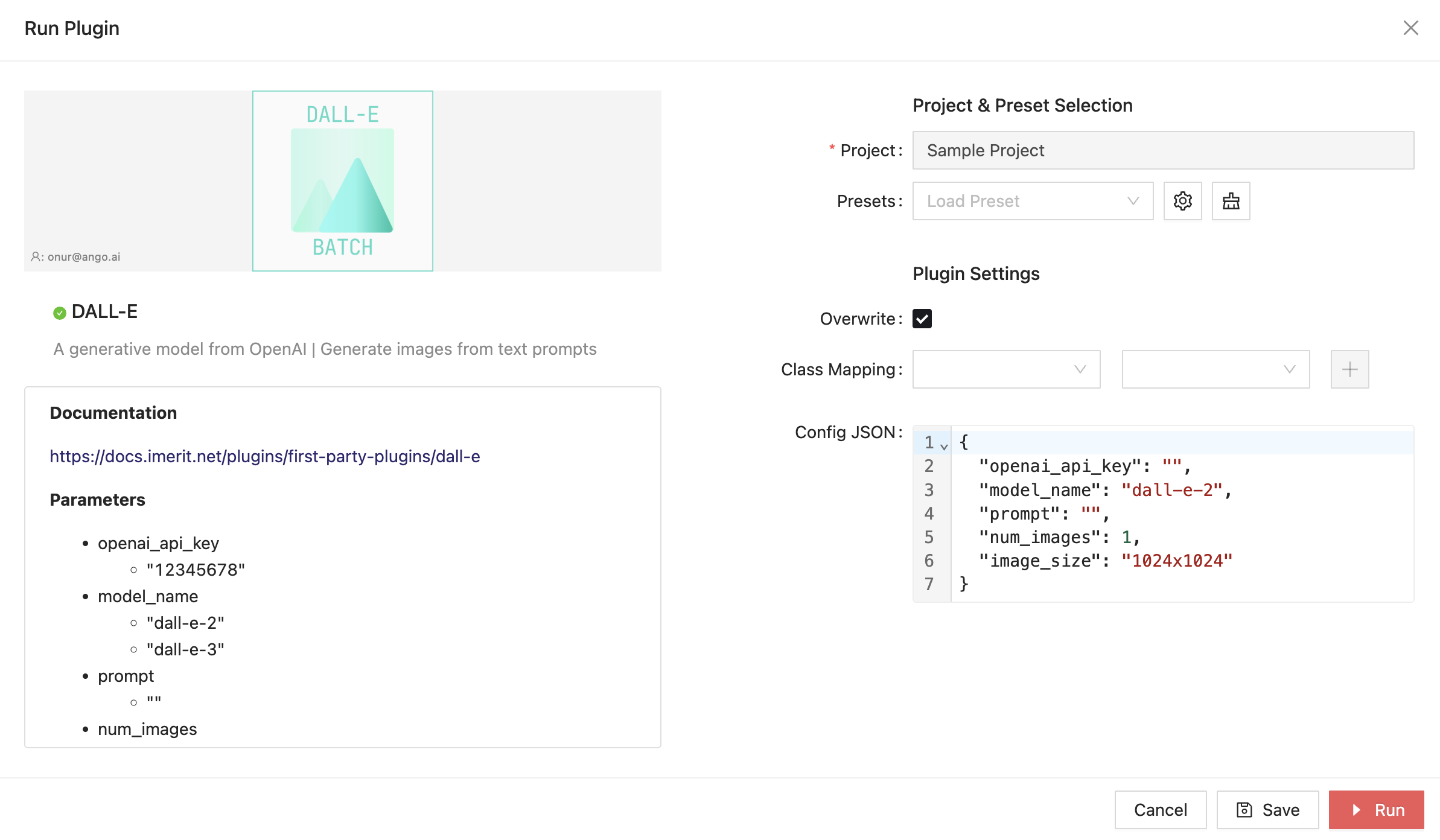
Find the plugin, and click on *Open.* A dialog will appear:
{% hint style="info" %}
Ensure the dot before the plugin's name is green. The dot indicates the plugin's status, where green signifies the plugin's code is running, and red signifies the plugin's code is not running.
You will not be able to run plugins the code of which isn't running.
{% endhint %}
### Configuration JSON Settings
#### Default Configuration:
```json
{
"openai_api_key": "default",
"model_name": "dall-e-2",
"prompt": "",
"num_images": 1,
"image_size": "1024x1024"
}
```
**openai\_api\_key**: By `default`, the DALL-E plugin will use an OpenAI API key provided by iMerit, for testing purposes, limited to generating, globally, 5 images per minute. You may provide here your own OpenAI API key to remove these limits and utilize your own OpenAI API key.
**model\_name**: When providing a custom OpenAI API key, you may indicate here the name of the model the API key is for. Currently, OpenAI provides `dall-e-2` and `dall-e-3`.
{% hint style="warning" %}
Please ensure the OpenAI API key you provide belongs to the model you specify.
For example, providing an OpenAI API key for `dall-e-2`, and then selecting `dall-e-3` as the model will cause the plugin not to work.
{% endhint %}
**prompt**: The prompt to pass to DALL-E for image generation. For example, `A horse running up a hill`.
**num\_images**: The number of images DALL-E will generate and upload to your project. Minimum 1, maximum 5.
**image\_size**: Resolution of the image to generate. Recommended: 512x512.
## Running DALL-E
Click on *Run*. DALL-E will start generating the assets and will upload them to your project once they are ready.
You may check the plugin's progress from the *Plugin Sessions* dialog. More information on checking plugin progress [here](/plugins/introduction-to-plugins/monitoring-plugin-progress.md).
---
# Agent Instructions
This documentation is published with GitBook. GitBook is the documentation platform designed so that both humans and AI agents can read, navigate, and reason over technical content effectively. Learn more at gitbook.com.
## Querying This Documentation
If you need additional information that is not directly available in this page, you can query the documentation by asking a question.
Perform an HTTP GET request on the following URL with the `ask` and `goal` query parameters:
```
GET https://docs.imerit.net/plugins/first-party-ango-plugins/dall-e.md?ask=&goal=
```
`ask` is the immediate question: it should be specific, self-contained, and written in natural language.
`goal` is what the user is ultimately trying to achieve, the reason they need the answer. Sharing it helps GitBook give you a better, more relevant answer. A goal is most helpful when it describes the outcome the user wants rather than restating the question. For example, with `ask=how do I create an API token`, a goal like `automate deployments from our CI pipeline` lets GitBook tailor the answer to that use case.
The response will contain a direct answer to the question and relevant excerpts and sources from the documentation.
Use this mechanism when the answer is not explicitly present in the current page, you need clarification or additional context, or you want to retrieve related documentation sections.