# Ango to Mask Converter

## Overview

The Ango to Mask Converter plugin converts various annotation types including segmentation, polygon, and bounding box; from the Ango format into mask representations. It supports multiple data types and annotation tools, offering flexibility for processing images, videos, and multi-page assets.

<figure><img src="https://3895963154-files.gitbook.io/~/files/v0/b/gitbook-x-prod.appspot.com/o/spaces%2FTcOUG6rfWxqGM0N4db2P%2Fuploads%2FliIyDKpqbBiZnU4Hz2Mk%2Fimage.png?alt=media&#x26;token=e18a8f8d-cb81-466a-930b-f771c3b0ca76" alt=""><figcaption><p>Ango to Mask Converter <br>(A) Annotations on Ango Hub image editor, (B) Output mask</p></figcaption></figure>

## Plugin Functionality

The Ango to Mask Converter plugin transforms annotations from the Ango format into mask representations, offering a highly configurable and efficient workflow for both image and video data. It provides flexible visualization, mapping, and logging options to meet diverse annotation and analysis needs.

* Converts annotations into mask images using flexible color-mapping strategies to represent each class or instance clearly and consistently.
* Allows users to include or prioritize specific annotation categories when generating masks, ensuring only relevant data is processed.
* Optionally adds distinct outlines around objects to improve mask visibility and better separate adjacent regions.
* Can overlay generated masks directly on top of the original media, with adjustable opacity to balance visibility between the source image and the mask.
* Allows generated masks to be displayed directly over the original media, with adjustable opacity for optimal balance between the mask and the source media.

<figure><img src="https://3895963154-files.gitbook.io/~/files/v0/b/gitbook-x-prod.appspot.com/o/spaces%2FTcOUG6rfWxqGM0N4db2P%2Fuploads%2FoEqiNa3QOqDk9BHgoo2a%2Fimage.png?alt=media&#x26;token=711a2aa3-c898-49f9-8304-6afa4b19bca3" alt=""><figcaption></figcaption></figure>

{% hint style="warning" %}
It is recommended to export data in smaller batches when using this plugin. The optimal batch size depends on asset dimensions and annotation density, but batches of around 1000 assets are generally safe.
{% endhint %}

{% hint style="warning" %}
Before running the plugin, ensure that overlapping regions between annotations are carefully reviewed. By default, the plugin applies a priority order across annotation tools as follows: **Point → Polyline → Segmentation → Polygon → Rotated Bounding Box → Bounding Box → Brush**.

When multiple annotations of the same tool overlap, priority is determined by the annotation order.

To override this behavior and prioritize specific classes (such as foreground objects) you can provide a list of schema IDs using the `prioritized_schema_ids` parameter in the config JSON.
{% endhint %}

### Supported Data Types

* Image
* Video
* Multi-Image Assets

### Supported Annotation Tools

* Polygon
* Segmentation
* Point
* Polyline
* Bounding Box
* Rotated Bounding Box
* Brush (For image assets only)

## Plugin Configuration

From the **Stage Filter** field, pick the stages containing the tasks you'd like to get the export of. Similarly, from the **Batch Filter** field, you may select one or more batches the tasks of which will be exported. By default, all tasks are exported from all batches.

If you wish to receive an email when the export is complete, toggle **Send Email** on.

You may vary a number of settings related to your export from the **Config JSON** field. Each option is detailed below:

```json
{
  "class_mapping_type": "project_colors",
  "selected_schema_ids": [],
  "prioritized_schema_ids": [],
  "add_boundary": false,
  "polyline_format": "line",
  "polyline_thickness": 5,
  "include_key_frames_only": true,
  "logging_frequency": 0,
  "overlay_over_image": false,
  "overlay_opacity": 0.5
}
```

* **"class\_mapping\_type":** Defines how classes are mapped to the mask output.&#x20;
  * Options:
    * <kbd>"single\_channel\_sequential"</kbd>
    * <kbd>"single\_channel\_diverging"</kbd>
    * <kbd>"multi\_channel\_qualitative"</kbd>
    * <kbd>"project\_colors"</kbd>
    * <kbd>"instance\_segmentation"</kbd>
  * Example:
    * <kbd>"class\_mapping\_type": "project\_colors"</kbd>&#x20;
  * Descriptions:

**single\_channel\_sequential:** Assigns grayscale values sequentially in a single channel.

Example: <kbd>Class-1: \[1], Class-2: \[2], Class-3: \[3]</kbd>&#x20;

<figure><img src="https://3895963154-files.gitbook.io/~/files/v0/b/gitbook-x-prod.appspot.com/o/spaces%2FTcOUG6rfWxqGM0N4db2P%2Fuploads%2FjLjUHAGXosQ5VRGwzgfh%2Fab69d378705545bba4ad22cdc3e689ef.png?alt=media&#x26;token=686266e7-e11f-4a7b-bc48-c2962d482a88" alt="" width="375"><figcaption><p>Output mask with "class_mapping_type": "single_channel_sequential" option</p></figcaption></figure>

{% hint style="warning" %}
The output mask image may appear completely black because the pixel values of 1, 2, and 3 are very close to pure black and visually indistinguishable to the human eye.
{% endhint %}

**single\_channel\_diverging:** Uses diverging grayscale values for enhanced distinction.

Example: <kbd>Class-1: \[256], Class-2: \[128], Class-3: \[64]</kbd>&#x20;

<figure><img src="https://3895963154-files.gitbook.io/~/files/v0/b/gitbook-x-prod.appspot.com/o/spaces%2FTcOUG6rfWxqGM0N4db2P%2Fuploads%2FAHHNb3iP6H4FZUlNqvOE%2Fab69d378705545bba4ad22cdc3e689ef.png?alt=media&#x26;token=146dcf63-5237-48cf-a504-d9d5ecaf405d" alt="" width="375"><figcaption><p>Output mask with "class_mapping_type": "single_channel_diverging" option</p></figcaption></figure>

**multi\_channel\_qualitative:** Maps each class to matplotlibs color schemas: 'tab10', 'tab20', 'tab20b', 'tab20c', and ‘xkcd-colors’ respectively.

Example: <kbd>Class-1: \[31, 119, 180], Class-2: \[255, 127, 14]</kbd>

<figure><img src="https://3895963154-files.gitbook.io/~/files/v0/b/gitbook-x-prod.appspot.com/o/spaces%2FTcOUG6rfWxqGM0N4db2P%2Fuploads%2Fo4LhhEDPfrgeEQoOeJmG%2Fab69d378705545bba4ad22cdc3e689ef.png?alt=media&#x26;token=70bb4458-6ef7-4e93-8a32-e5357169ded2" alt="" width="375"><figcaption><p>Output mask with "class_mapping_type": "multi_channel_qualitative" option</p></figcaption></figure>

**project\_colors:** Uses project-defined colors for mask generation.

Example: <kbd>Class-1: \[244, 67, 54], Class-2: \[3, 169, 244]</kbd>

<figure><img src="https://3895963154-files.gitbook.io/~/files/v0/b/gitbook-x-prod.appspot.com/o/spaces%2FTcOUG6rfWxqGM0N4db2P%2Fuploads%2FcVEnvtJk87FhqB5Doi5M%2Fab69d378705545bba4ad22cdc3e689ef.png?alt=media&#x26;token=3deecc74-ac34-48d0-8372-7e5922548678" alt="" width="375"><figcaption><p>Output mask with "class_mapping_type": "project_colors" option</p></figcaption></figure>

**instance\_segmentation:** Assigns a distinct RGB color to each instance.&#x20;

Example: <kbd>Cat-1: \[31, 199, 180], Dog-1: \[255, 127, 14], Dog-2: \[44, 160, 44]</kbd>

<figure><img src="https://3895963154-files.gitbook.io/~/files/v0/b/gitbook-x-prod.appspot.com/o/spaces%2FTcOUG6rfWxqGM0N4db2P%2Fuploads%2F0iSlwqgremjFCIhC3HvZ%2Fab69d378705545bba4ad22cdc3e689ef.png?alt=media&#x26;token=b96c05e1-ecbb-4002-be08-eb01bd6fc657" alt="" width="375"><figcaption><p>Output mask with "class_mapping_type": "instance_segmentation" option</p></figcaption></figure>

* **"selected\_schema\_ids":** A list of schema IDs to specify which classes should be processed. Only annotations matching these IDs will be considered.
  * Example:&#x20;
    * <kbd>"selected\_schema\_ids": \["1234", "1235"]</kbd>

* **"prioritized\_schema\_ids":** A list of schema IDs that defines which annotations take precedence when multiple annotations overlap. Note: By default, the tools are sorted according to their tool type. The sorting order from back to front is as follows: brush, bounding box, rotated bounding box, polygon, segmentation, polyline, point
  * Example:&#x20;
    * <kbd>"prioritized\_schema\_ids": \["1234", "1235"]</kbd>

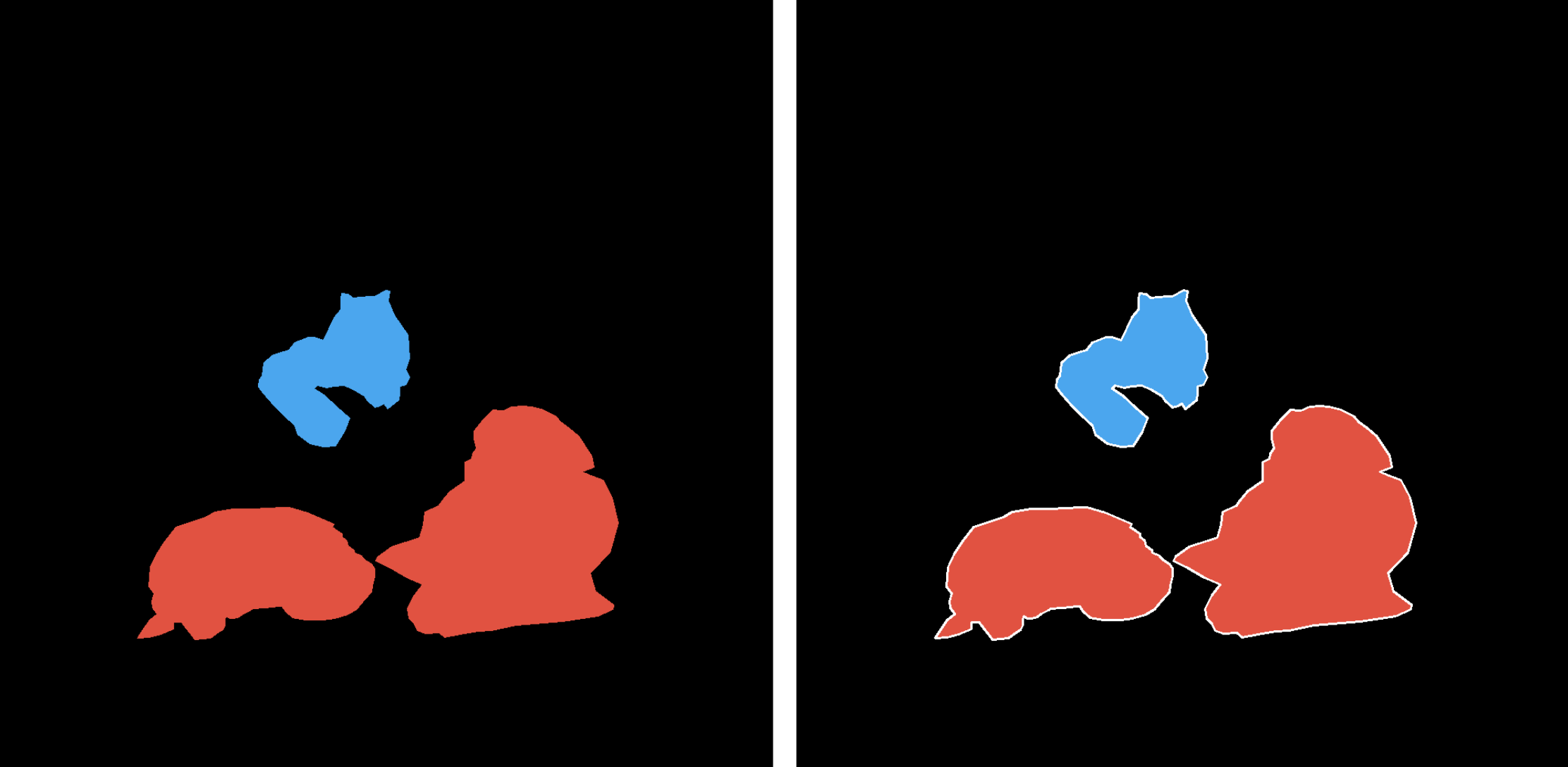
* **"add\_boundary":** Boolean value (true or false). If enabled, adds boundaries to annotations for better visualization in the generated masks. Supported for polygon, segmentation, bounding box, and rotated bounding box.
  * Example:
    * <kbd>"add\_boundary": true</kbd>
    * <kbd>"add\_boundary": false</kbd>

<figure><img src="https://3895963154-files.gitbook.io/~/files/v0/b/gitbook-x-prod.appspot.com/o/spaces%2FTcOUG6rfWxqGM0N4db2P%2Fuploads%2F45rFfHHBpk3gNQoIEknr%2Fimage.png?alt=media&#x26;token=980bf0a3-8c84-4a69-92a1-cc515b2a89c7" alt=""><figcaption><p>(A) Output mask with "add_boundary": false option and (B) Output mask with "add_boundary": true option</p></figcaption></figure>

* **"polyline\_format":** Specifies how polyline annotations are represented in the output mask. The <kbd>"line"</kbd> option draws only the connecting lines between points, <kbd>"point"</kbd> marks only the individual points of the polyline, and <kbd>"line+point"</kbd> includes both the connecting lines and their defining points.
  * Options:
    * <kbd>"line"</kbd>
    * <kbd>"point"</kbd>
    * <kbd>"line+point"</kbd>
  * Example:&#x20;
    * <kbd>"polyline\_format": "line"</kbd>

* **"polyline\_thickness":** Specifies the thickness of the boundary lines (in pixels) for polyline or segmentation annotations.&#x20;
  * Example:
    * "<kbd>polyline\_thickness": 5</kbd>

* **"include\_key\_frames\_only":** Specifies whether only key frames should be included in the metrics calculation. (For video assets only)
  * Example:
    * <kbd>"include\_key\_frames\_only": true</kbd>
    * <kbd>"include\_key\_frames\_only": false</kbd>&#x20;

* **"logging\_frequency":** Defines how frequently progress logs are displayed; setting this value to 0 disables logging entirely, while any positive integer enables logging at the specified interval. For more information on how to view plugin logs, [see here](https://docs.imerit.net/plugins/introduction-to-plugins/monitoring-plugin-progress).
  * Example:
    * <kbd>"logging\_frequency": 0</kbd>&#x20;
    * <kbd>"logging\_frequency": 100</kbd>

* **"overlay\_over\_image":** Boolean value (true or false). When enabled, the generated mask will be overlaid on the original image or video for easy comparison.
  * Example:
    * <kbd>"overlay\_over\_image": true</kbd>
    * <kbd>"overlay\_over\_image": false</kbd>

<figure><img src="https://3895963154-files.gitbook.io/~/files/v0/b/gitbook-x-prod.appspot.com/o/spaces%2FTcOUG6rfWxqGM0N4db2P%2Fuploads%2FD8e9pSyASSwyihLIG2n0%2Fimage.png?alt=media&#x26;token=3a43eab9-12c1-42a3-8b34-e78a3daa16e2" alt=""><figcaption><p>(A) Output mask with "overlay_over_image": false option and (B) Output mask with "overlay_over_image": true option</p></figcaption></figure>

* **"overlay\_opacity":** Float value between 0 and 1 that controls the transparency of the overlay. A value of 0 means the mask is fully transparent, while 1 means it is fully opaque.
  * Example:
    * <kbd>"overlay\_opacity": 0.5</kbd>