> For the complete documentation index, see [llms.txt](https://docs.imerit.net/llms.txt). Markdown versions of documentation pages are available by appending `.md` to page URLs; this page is available as [Markdown](https://docs.imerit.net/plugins/introduction-to-plugins/plugin-configuration-and-preset-management.md).
# Plugin Configuration and Preset Management
Often, plugins have extensive sets of options which would normally need to be set whenever the plugin is to be run. Hub provides a way to create settings presets which can be saved once and loaded multiple times, saving you time and effort.
Setting Presets are saved for the project and the plugin where you create them.
## How to Save Plugin Setting Presets
Navigate to the project where you'd like to set the preset, and go to *Settings* -> *Plugins*. Click on *Open* on the plugin you'd like to set the preset for.
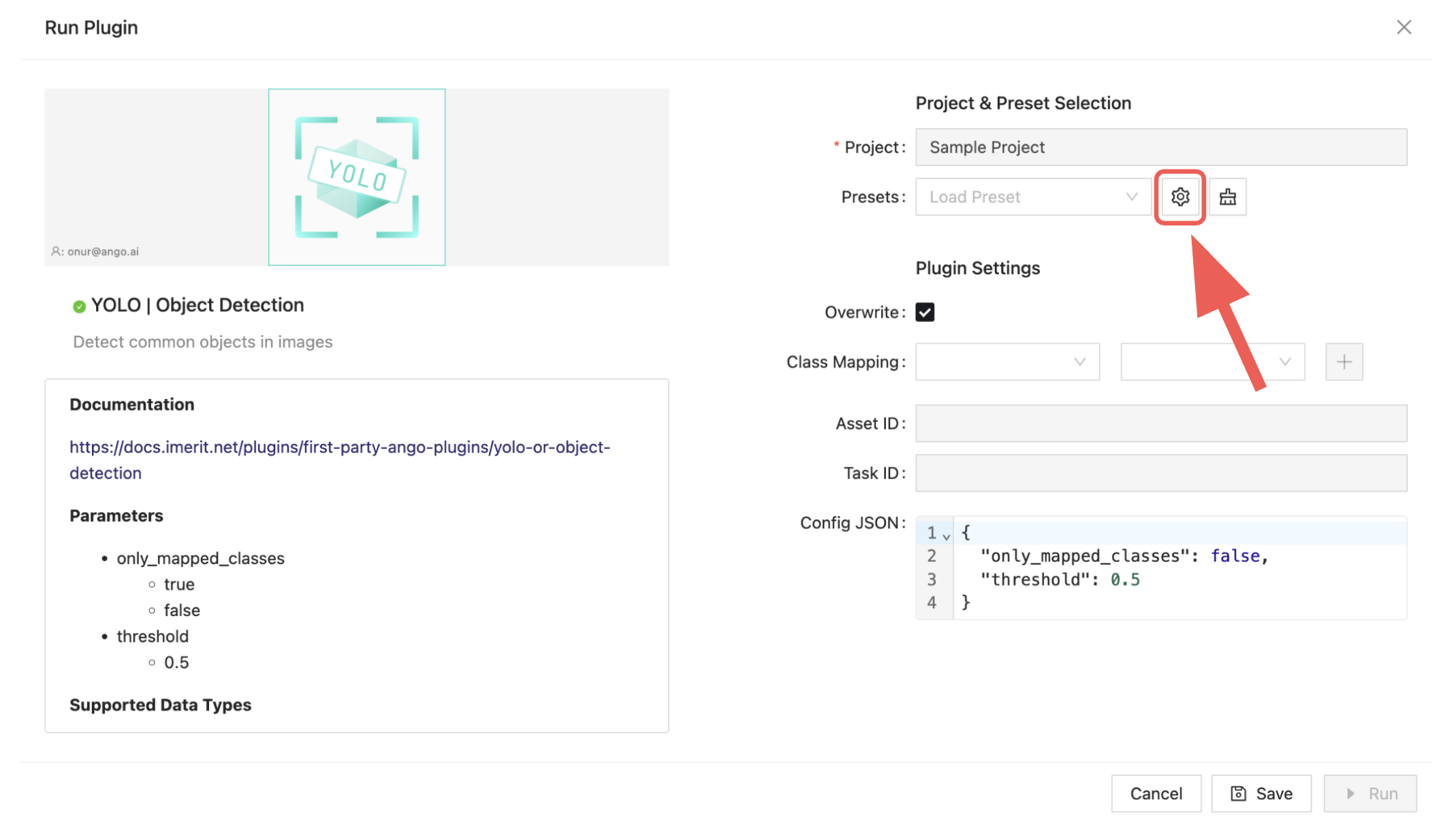
The *Run Plugin* dialog will open. From the form on the right, set your plugin's settings, for example, the Class Mapping and the Config JSON.
Click on the button.
The preset manager will pop up:
Write the name of your new preset and click on *Add*. Your current settings will be saved as a preset which you can load again later. Click on the floppy disc icon of a preset to update the preset with the current settings.
## How to Load Plugin Setting Presets
### From Settings
Navigate to the project where you'd like to set the preset, and go to *Settings* -> *Plugins*. Click on *Open* on the plugin you'd like to set the preset for.
The *Run Plugin* dialog will open.
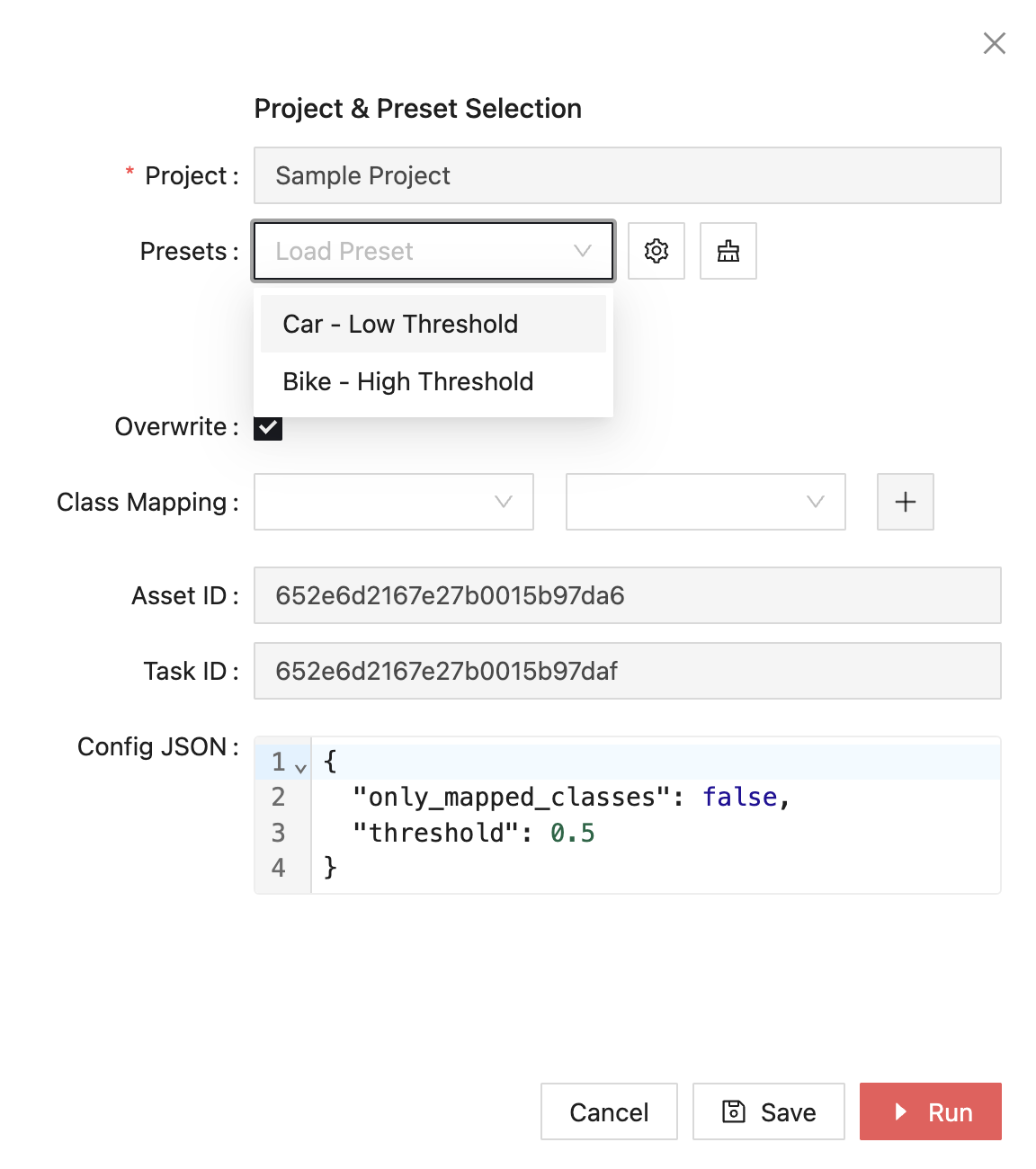
From the form on the right, click on the dropdown named *Load Preset*, then select the preset you'd like to load.
When you click on a preset, its settings will be loaded. You can then press on *Run* to run the plugin.
### From Editor
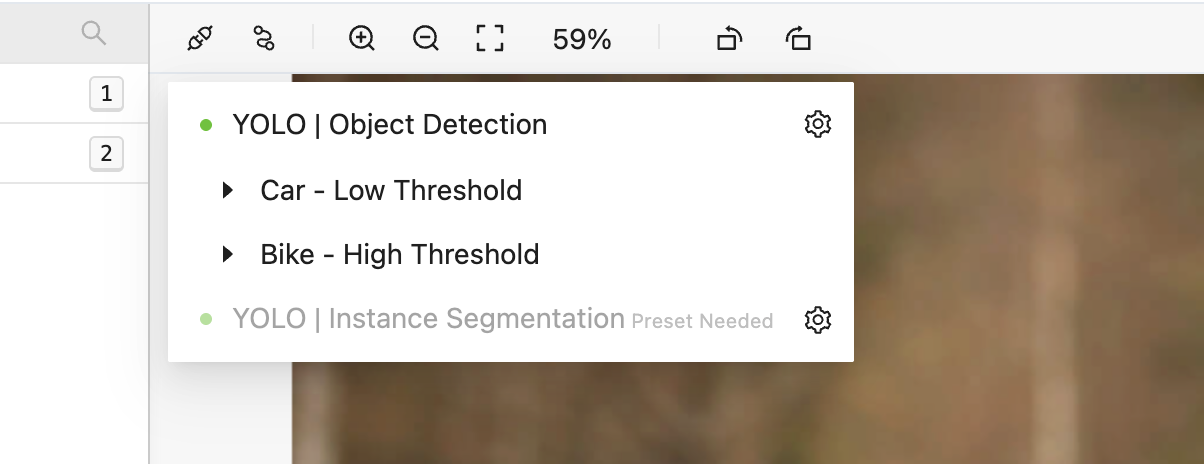
To run the plugins from the labeling editor, open the asset you'd like to run the Model plugin on, then click on the icon above the asset. A dropdown will open listing all Model plugins active in the current organization along with their presets.
If you have set a preset, click on the name of the preset to run the plugin.
***
If you have not set a preset, or if you wish to run the plugin using a preset other than the available presets, click on the gear icon to the right of the name of the plugin you'd like to run.
From here, you'll be able to load an existing preset by clicking on the *Load Preset* dropdown and picking one, or you can tweak the plugin's settings manually and run it without setting or loading any preset.
### From Workflow
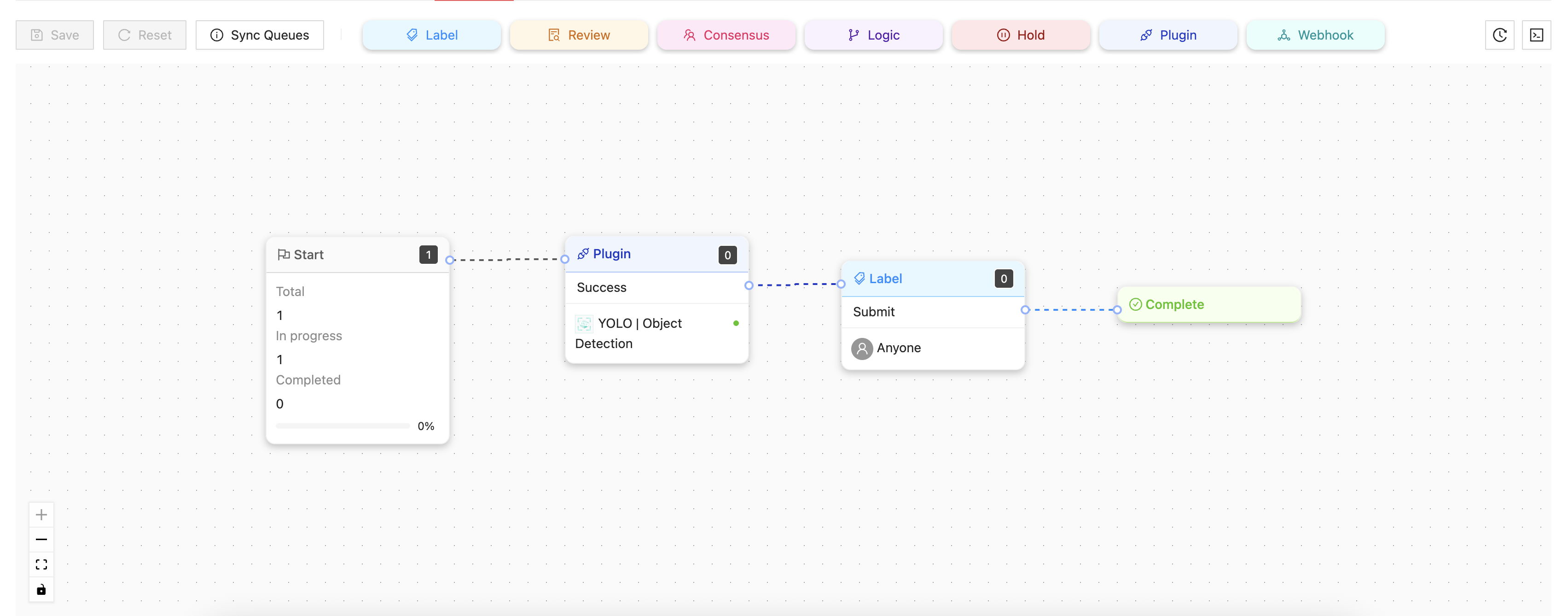
You can load a plugin preset when setting up a plugin that will be run automatically as part of a [workflow](/core-concepts/workflow.md).
To do so, navigate to your project, then the Workflow tab, and click on the Plugin stage where you'd like to load the preset. This dialog will appear:
Click on *Load Preset* to pick among one of the presets saved in your project for the plugin selected to load a preset. Click on the 'broom' icon to clear all settings and unselect the preset.
---
# Agent Instructions
This documentation is published with GitBook. GitBook is the documentation platform designed so that both humans and AI agents can read, navigate, and reason over technical content effectively. Learn more at gitbook.com.
## Querying This Documentation
If you need additional information that is not directly available in this page, you can query the documentation by asking a question.
Perform an HTTP GET request on the following URL with the `ask` and `goal` query parameters:
```
GET https://docs.imerit.net/plugins/introduction-to-plugins/plugin-configuration-and-preset-management.md?ask=&goal=
```
`ask` is the immediate question: it should be specific, self-contained, and written in natural language.
`goal` is what the user is ultimately trying to achieve, the reason they need the answer. Sharing it helps GitBook give you a better, more relevant answer. A goal is most helpful when it describes the outcome the user wants rather than restating the question. For example, with `ask=how do I create an API token`, a goal like `automate deployments from our CI pipeline` lets GitBook tailor the answer to that use case.
The response will contain a direct answer to the question and relevant excerpts and sources from the documentation.
Use this mechanism when the answer is not explicitly present in the current page, you need clarification or additional context, or you want to retrieve related documentation sections.


 button.


 icon above the asset. A dropdown will open listing all Model plugins active in the current organization along with their presets.