> For the complete documentation index, see [llms.txt](https://docs.imerit.net/llms.txt). Markdown versions of documentation pages are available by appending `.md` to page URLs; this page is available as [Markdown](https://docs.imerit.net/labeling/labeling-editor-interface/medical-labeling-editor/hollow.md).
# Hollow
Hollow turns a Voxel Brush segmentation on an NRRD asset into a shell of a chosen thickness. It follows the segmentation's outline in 3D, across all slices.
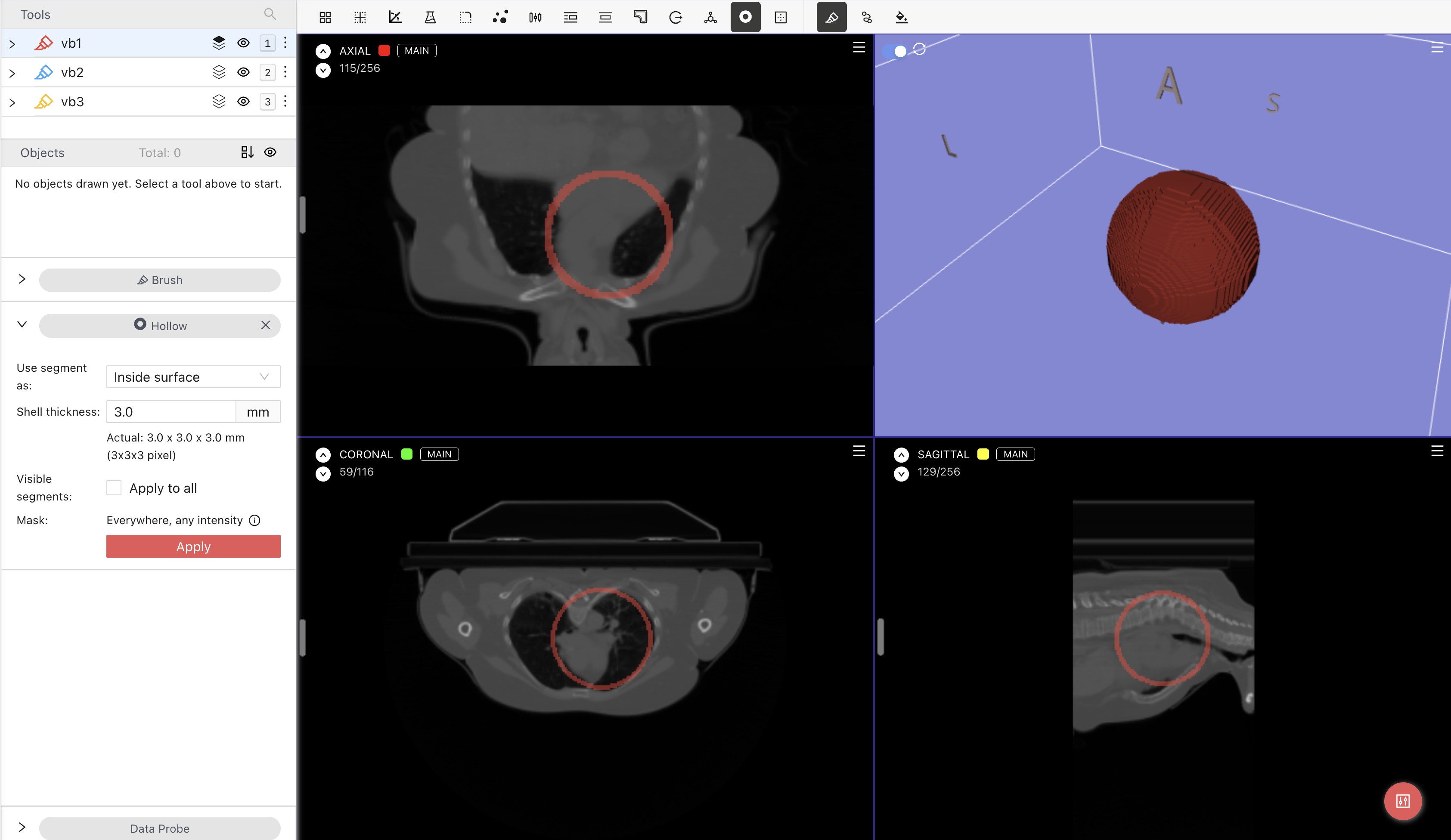
A segmentation hollowed with Inside surface and a shell thickness of 3 mm.
## How to use Hollow
1. Select the Voxel Brush class whose segmentation you want to hollow.
2. Click **Hollow**, the ring icon in the function bar next to **Grow from Seeds**. Its settings appear in the options panel.
3. Choose how to position the shell under **Use segment as**, then set **Shell thickness** in millimeters. The defaults are **Inside surface** and **3 mm**.
4. To hollow every visible Voxel Brush class, enable **Apply to all** under **Visible segments**. Otherwise, only the selected class is hollowed.
5. Click **Apply** and wait for the operation to finish. Review the result in the Axial, Coronal, and Sagittal views, then save the task to keep it.
You can undo or redo the applied result. When using **Apply to all**, one Undo restores all the segments changed by that operation.
## Shell position and thickness
**Use segment as** determines where the shell sits relative to the original segmentation:
| Option | Result |
| ------------------- | ----------------------------------------------------------------------------------------------------------------- |
| **Inside surface** | Builds the shell just outside the original outline. The original segmentation defines the shell's inside surface. |
| **Medial surface** | Centers the shell on the original outline. |
| **Outside surface** | Builds the shell inside the original outline, keeping its outer edge in place. |
The **Actual** line shows the thickness the volume's resolution allows in each direction. It may differ from the requested thickness because the shell is made of whole voxels.
{% hint style="info" %}
If the requested thickness is smaller than one voxel in any direction, Ango Hub shows **Not feasible at current resolution.** and disables **Apply**. Increase the thickness to continue.
{% endhint %}
## Masking and overlapping segments
**Mask** shows where Hollow can change the segmentation. Change **Editable Area** in the [Brush settings](/labeling/labeling-editor-interface/medical-labeling-editor.md#brush-tool) to restrict the operation to an area, and enable [Threshold](/labeling/labeling-editor-interface/medical-labeling-editor.md#threshold) to also limit it to an intensity range. The selected segmentation keeps its existing voxels outside this area.
With **Outside all segments** or **Outside all visible segments**, Hollow ignores the segment it is currently editing when determining the editable area. Other segments still restrict where changes are allowed.
The Brush **Modify other segments** setting controls overlaps with the resulting shell: overwrite all segments, overwrite visible segments only, or allow overlap.
## Visibility and limits
**Apply to all** hollows visible segments only. Hide any classes you want to leave unchanged before applying.
If the selected segment is hidden, Ango Hub asks whether to make it visible. Choose **Yes** to show it and apply Hollow, or **No** to apply while keeping it hidden. Dismissing the prompt without choosing either option cancels the action.
Empty segments are left unchanged. Ango Hub shows a message if the selected segment is empty, all visible segments are empty, or there are no visible segments to hollow.
If a segment spans too large a region to hollow in the browser, Ango Hub displays a warning and leaves that segment unchanged.
Deselecting the Voxel Brush class or selecting another type of labeling tool closes the Hollow panel.
---
# Agent Instructions
This documentation is published with GitBook. GitBook is the documentation platform designed so that both humans and AI agents can read, navigate, and reason over technical content effectively. Learn more at gitbook.com.
## Querying This Documentation
If you need additional information that is not directly available in this page, you can query the documentation by asking a question.
Perform an HTTP GET request on the following URL with the `ask` and `goal` query parameters:
```
GET https://docs.imerit.net/labeling/labeling-editor-interface/medical-labeling-editor/hollow.md?ask=&goal=
```
`ask` is the immediate question: it should be specific, self-contained, and written in natural language.
`goal` is what the user is ultimately trying to achieve, the reason they need the answer. Sharing it helps GitBook give you a better, more relevant answer. A goal is most helpful when it describes the outcome the user wants rather than restating the question. For example, with `ask=how do I create an API token`, a goal like `automate deployments from our CI pipeline` lets GitBook tailor the answer to that use case.
The response will contain a direct answer to the question and relevant excerpts and sources from the documentation.
Use this mechanism when the answer is not explicitly present in the current page, you need clarification or additional context, or you want to retrieve related documentation sections.