> For the complete documentation index, see [llms.txt](https://docs.imerit.net/llms.txt). Markdown versions of documentation pages are available by appending `.md` to page URLs; this page is available as [Markdown](https://docs.imerit.net/labeling/labeling-editor-interface/medical-labeling-editor/extract-centerline.md).
# Extract Centerline
Extract Centerline creates a 3D polyline through the middle of a segmented vessel, between a start point and an end point you choose. The line is saved under a Polyline class and includes its length.
Before starting, your project's category schema must contain a **Voxel Brush** class and a **Polyline** class. Segment the vessel with the Voxel Brush, or use [Threshold](/labeling/labeling-editor-interface/medical-labeling-editor.md#threshold) and [Island Tools](/labeling/labeling-editor-interface/medical-labeling-editor/island-tools.md) to prepare the segmentation.
## Extracting a Centerline
1. Select the Voxel Brush class containing the vessel segmentation.
2. Click **Extract Centerline** in the function bar. The options panel shows the selected **Segment**.
3. Choose the class for the resulting line from **Polyline tool**. If the project has no Polyline class, add one to the category schema before continuing.
4. Click inside the selected segmentation in an Axial, Coronal, or Sagittal view to place the **Start** point. A green marker appears. Click again to place the **End** point, shown in red. You can place the two points in different views or slices.
5. Click **Extract**. When extraction finishes, Ango Hub adds the line under the selected Polyline class and shows its length in a confirmation message.
6. Review the line across slices and in the [3D Viewer](/labeling/labeling-editor-interface/medical-labeling-editor.md#3d-viewer), then save the task to keep it.
While the panel is open, clicking in the slice views picks endpoints instead of painting. Clicking outside the selected segmentation shows a warning. A third valid click starts a new pair of endpoints; **Clear** removes the current pair.
Switching to another Voxel Brush class clears the endpoints. Deselecting the Voxel Brush class closes the panel.
## Viewing and Changing the Result
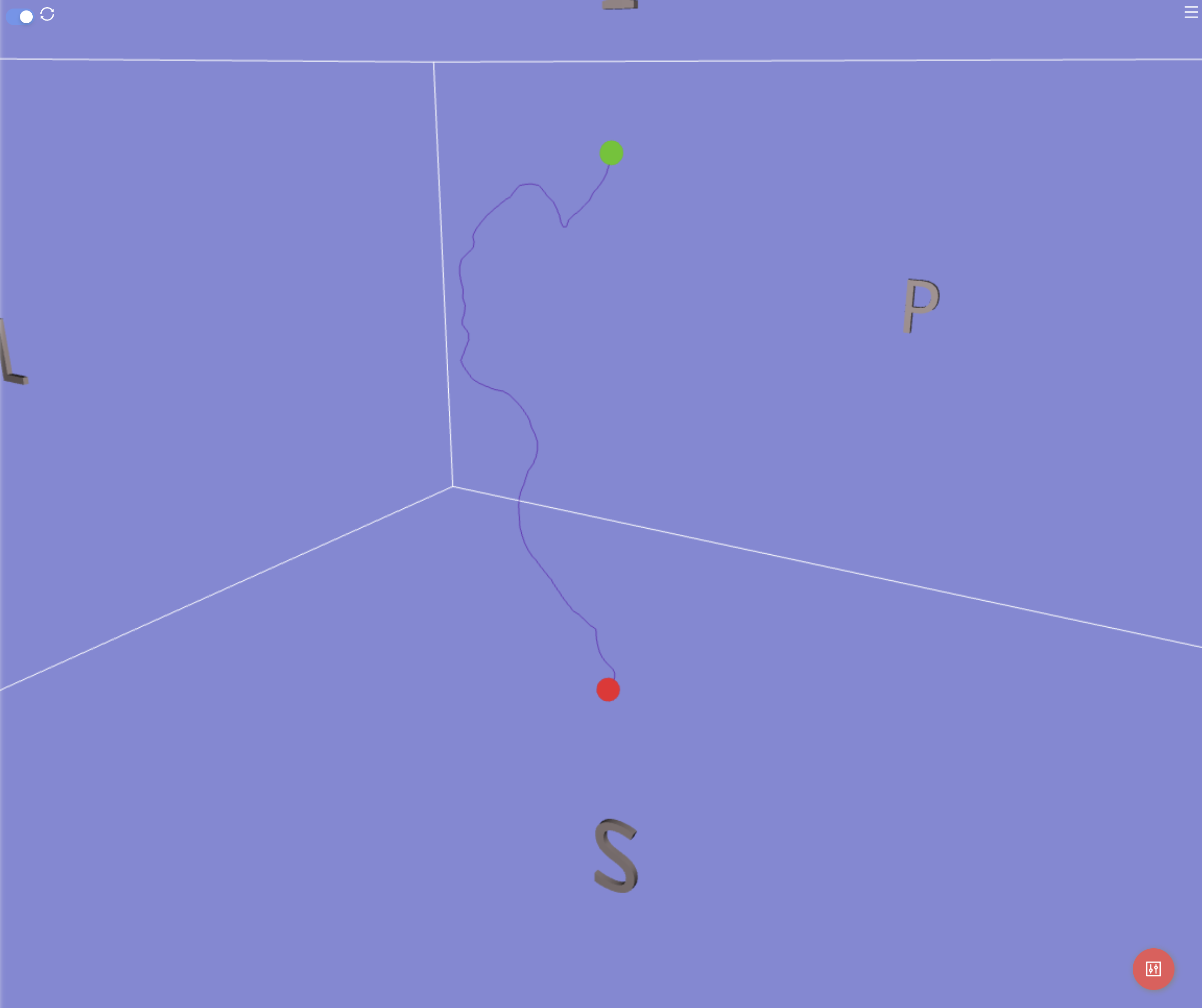
In the slice views, the centerline appears as a line where it lies on the current slice and as **×** marks where it crosses the slice. Green and red dots mark its start and end on their respective slices. In the 3D view, the line remains visible through the segmentation as a faded line, with green and red markers at its ends.
An extracted centerline in the 3D Viewer.
Extracted centerlines are read-only. You can select and delete a centerline, but you cannot move it or edit, add, remove, or extend its points. To change the result, delete the centerline and extract it again with new endpoints. [Hand-drawn polylines](/labeling/labeling-editor-interface/medical-labeling-editor/line-tape-measure.md#editing-a-line) remain editable.
## Canceling and Troubleshooting
Click **Cancel** to stop an extraction. Ango Hub also stops an extraction automatically if it takes more than 60 seconds. You can try again after canceling or after an error.
The start and end points must be connected through the selected segmentation. If they are on disconnected parts, no line is created. A fragmented segmentation, including one created with Threshold, may also prevent the line from reaching the end. Clean up the segmentation with [Island Tools](/labeling/labeling-editor-interface/medical-labeling-editor/island-tools.md) or [Smoothing](/labeling/labeling-editor-interface/medical-labeling-editor/smoothing.md), then try again.
Ango Hub shows a message if the selected segmentation is empty or if extraction runs out of memory.
---
# Agent Instructions
This documentation is published with GitBook. GitBook is the documentation platform designed so that both humans and AI agents can read, navigate, and reason over technical content effectively. Learn more at gitbook.com.
## Querying This Documentation
If you need additional information that is not directly available in this page, you can query the documentation by asking a question.
Perform an HTTP GET request on the following URL with the `ask` and `goal` query parameters:
```
GET https://docs.imerit.net/labeling/labeling-editor-interface/medical-labeling-editor/extract-centerline.md?ask=&goal=
```
`ask` is the immediate question: it should be specific, self-contained, and written in natural language.
`goal` is what the user is ultimately trying to achieve, the reason they need the answer. Sharing it helps GitBook give you a better, more relevant answer. A goal is most helpful when it describes the outcome the user wants rather than restating the question. For example, with `ask=how do I create an API token`, a goal like `automate deployments from our CI pipeline` lets GitBook tailor the answer to that use case.
The response will contain a direct answer to the question and relevant excerpts and sources from the documentation.
Use this mechanism when the answer is not explicitly present in the current page, you need clarification or additional context, or you want to retrieve related documentation sections.