---
description: Overview of projects and project management in Ango Hub
---
# Projects
Projects are the main way to organize and distribute labeling tasks in Ango Hub.
In projects, project owners, [managers](../../labeling/managing-users-in-projects#managers), and leads can upload up to 200k [assets](assets), add annotators, add [reviewers](reviewing), create label sets (annotation ontologies), export their results, and more. Everything done in Ango Hub is done within projects.
## Managing Projects in Ango Hub
### Creating Projects
From Ango Hub’s _Projects_ page, click on “Create Project” on the top right or the center.

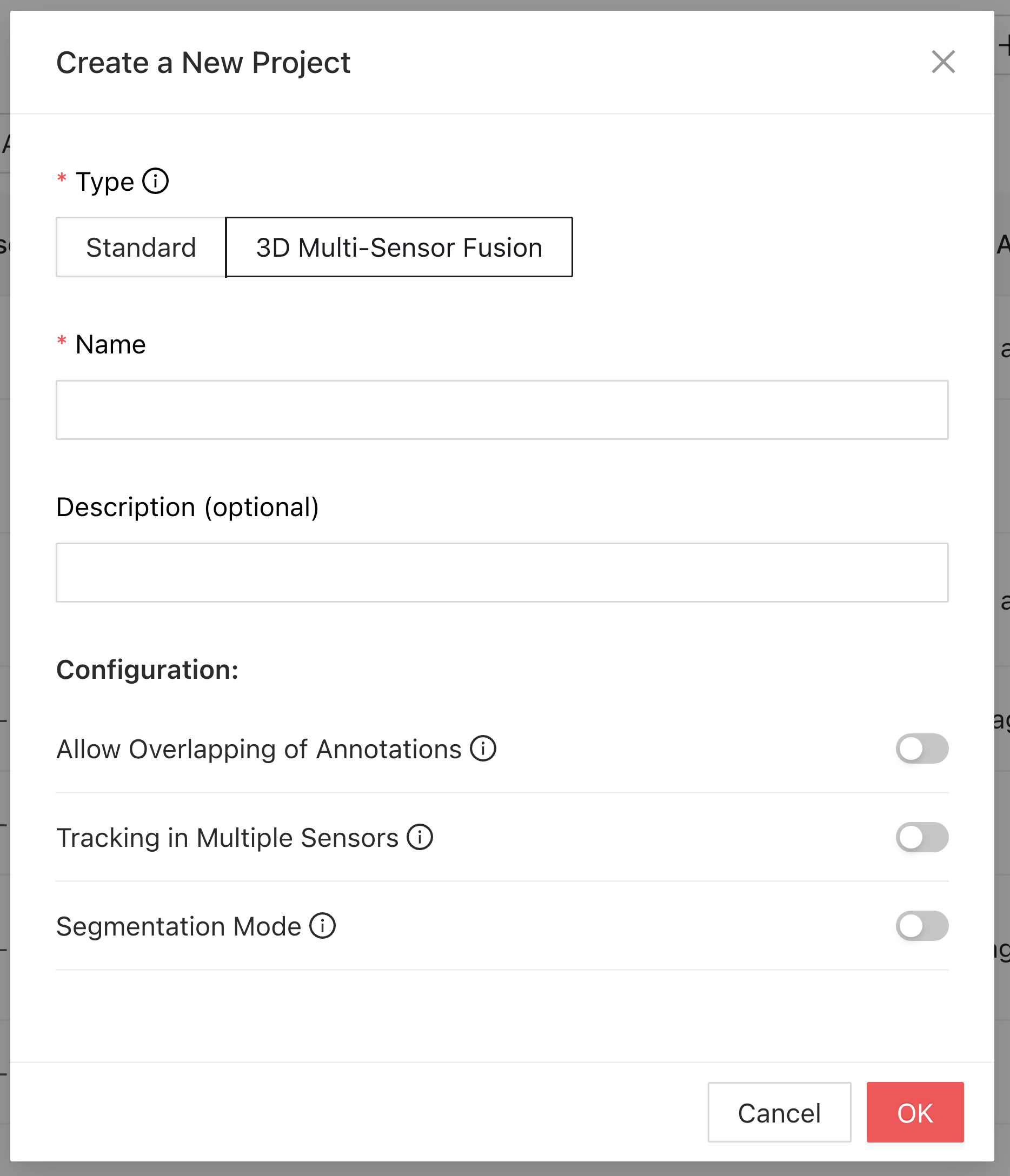
A dialog will pop up asking to input the project type, name, and description. Click on _Create Project_ at the bottom to create your project. In most cases, you will want to use _Standard_ projects. If you need to annotate 3D Multi-Sensor Fusion data such as point clouds, then select _3D Multi-Sensor Fusion_.
### Pinning Projects
You may pin projects to the top of your project list for easy access.
{% hint style="info" %}
Pinning a project will only pin it for your specific user account.
Other members of your organization will not see your pin.
{% endhint %}
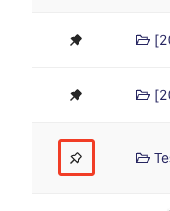
To pin a project, hover over the left side of the row of the project you'd like to pin. A pin icon will appear. Click on it to pin the project.
### Cloning Projects
You may clone a project to create a duplicate of it.
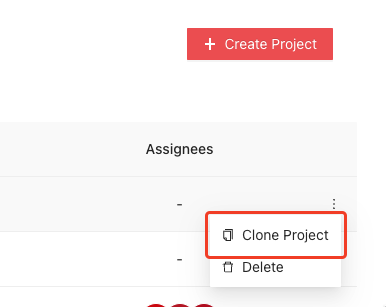
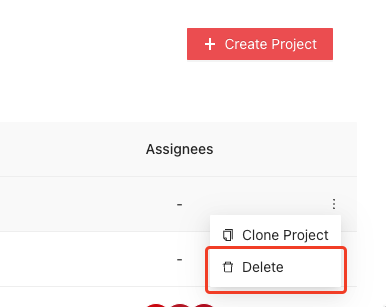
To clone a project, from the _Projects_ page, click on the three dots in the same row as the project you wish to clone and click on _Clone Project_.
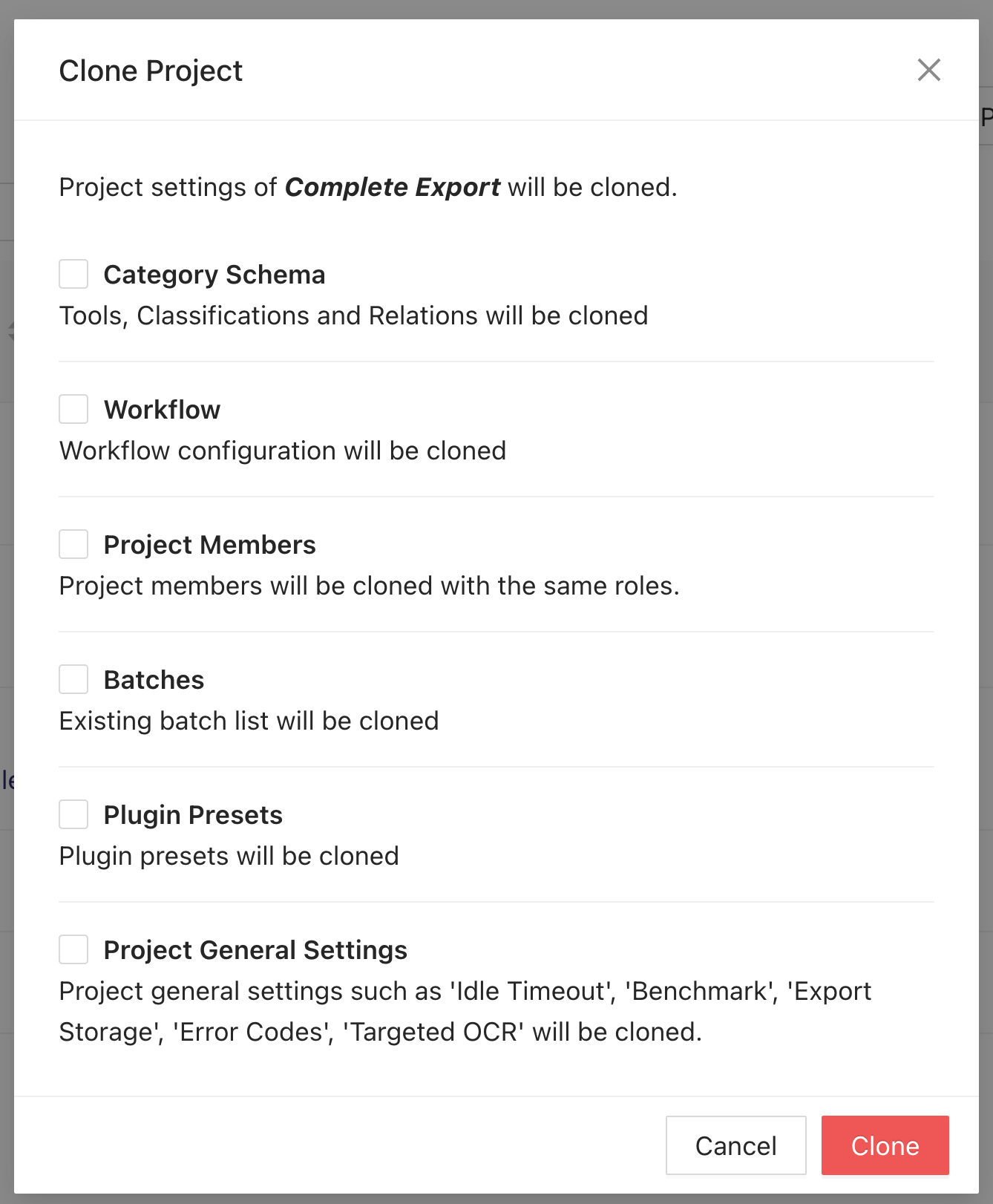
A dialog will appear, allowing you to select what parts of the project you would like to clone:
Click on _Clone_. A duplicate of the selected project will be added to your project list.
### Deleting Projects
To delete a project, from the _Projects_ page, click on the three dots in the same row as the project you wish to delete and click on _Delete_.
{% hint style="danger" %}
Deleting projects is an irreversible and destructive action. Once a project has been deleted, it cannot be recovered.
There is **no** "Trash" to which recently deleted projects go.
{% endhint %}
## 3D Multi-Sensor Fusion-type Projects
{% hint style="info" %}
The 3D Multi-Sensor Fusion project type is not available in private cloud and on-premise deployments of Ango Hub.
{% endhint %}
When creating a project, you are given the choice to select either _Standard_ or _3D Multi-Sensor Fusion_ as the project type.
3DMSF-type projects are required when you need to annotate 3D multi-sensor data, such as LiDAR, point cloud, etc.
3DMSF projects may not have all Ango Hub functionality available. Please refer to [this documentation page](../other/feature-availability-status-for-projects-of-the-3d-multi-sensor-fusion-type) to see what functionality is not available in 3DMSF-type projects.