# Projects and tasks

After signing in, the app opens to the *Projects* tab.

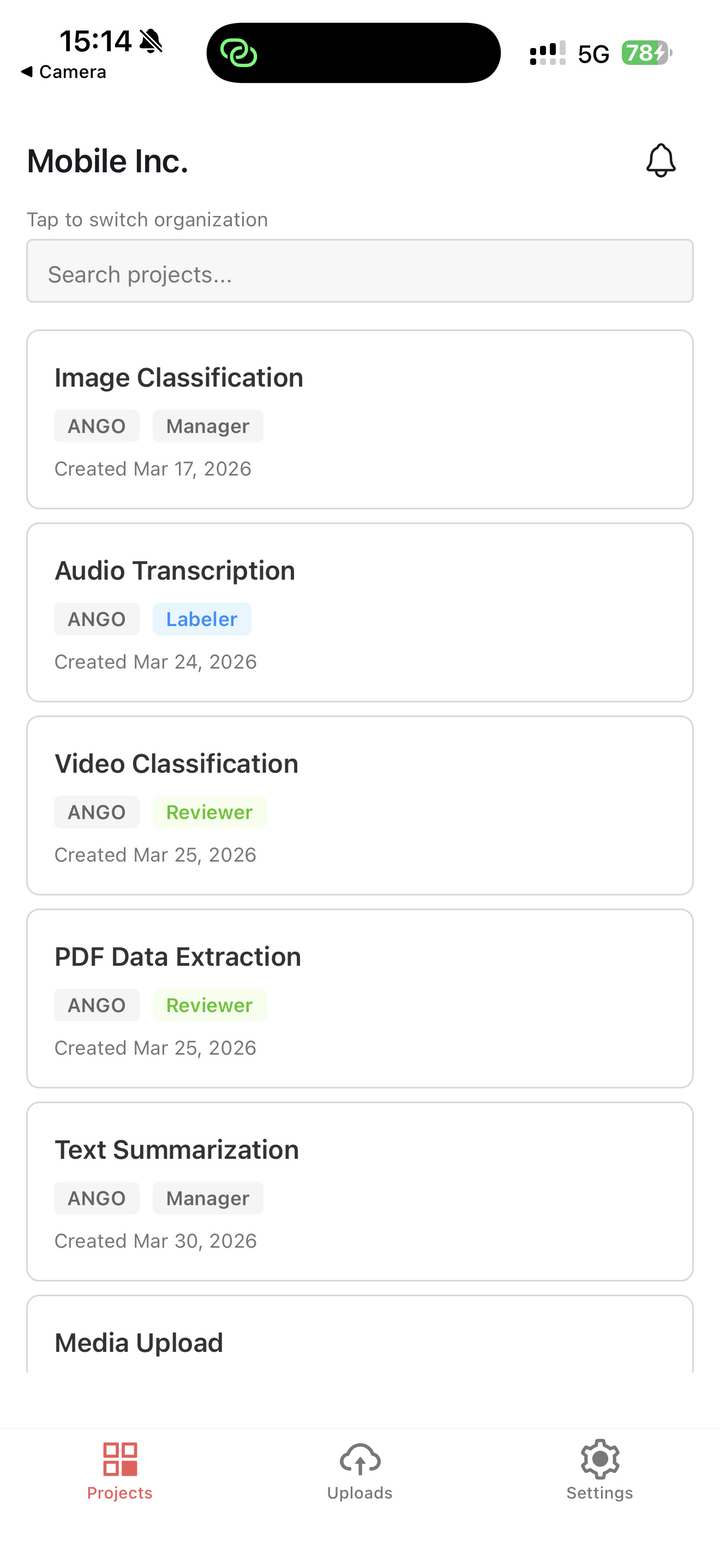
The project list shows the projects assigned to you in the selected organization. Use the search bar to filter projects by name. You can pull down to refresh the list.

<figure><img src="/files/dqG7wZwjmDwY6oZz9IcX" alt="" width="375"><figcaption><p>The Projects tab lists the projects available from the selected organization.</p></figcaption></figure>

## Pinning projects

Long-press a project in the list to pin or unpin it.

Pinned projects are kept near the top of the list, making frequently used projects easier to find.

## Opening a project

Tap a project to open it.

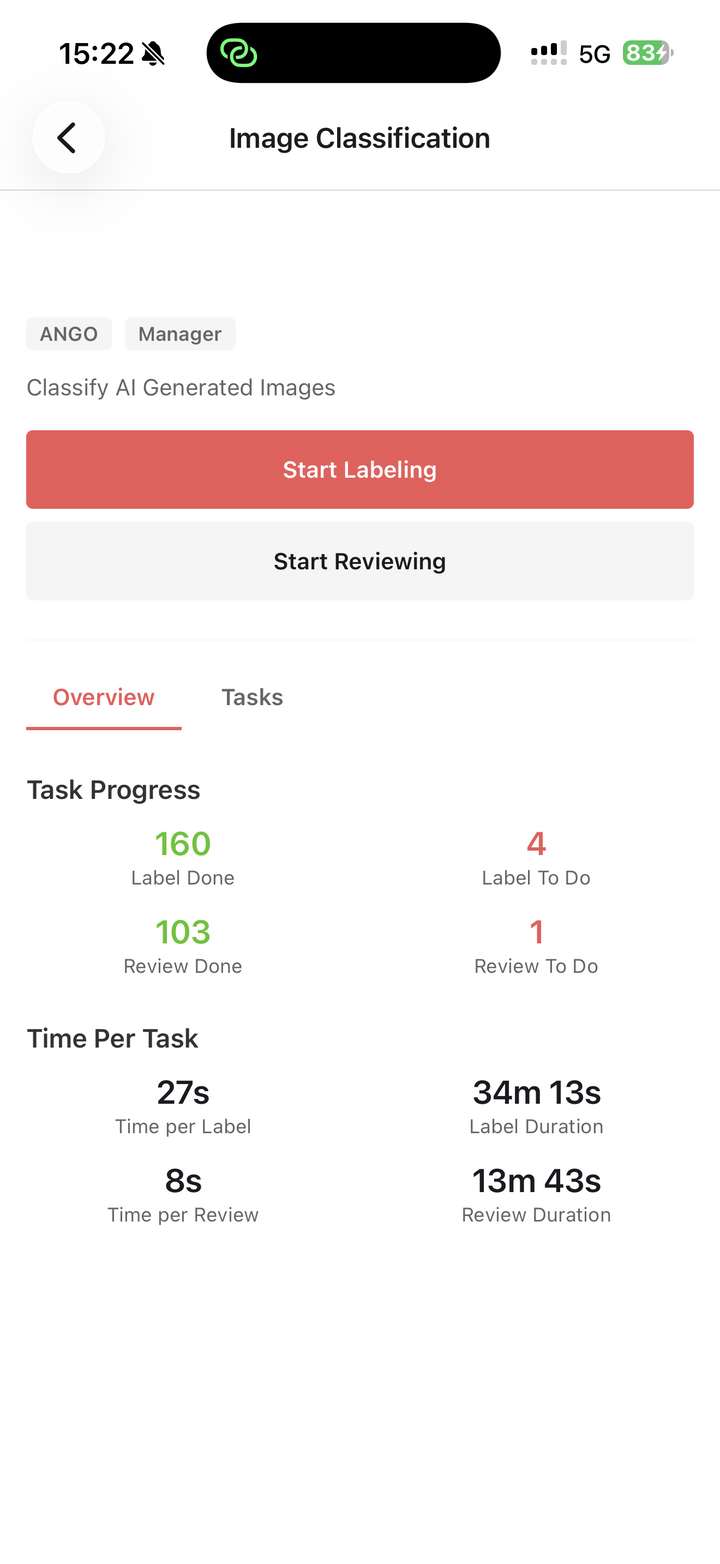
The project page shows:

* The project name and description.
* Your role in the project.
* The project type.
* *Start Labeling* and *Start Reviewing* buttons, when you have access to matching stages.
* An *Overview* tab.
* A *Tasks* tab.

If the project has more than one accessible Label or Review stage, tapping *Start Labeling* or *Start Reviewing* lets you choose the stage first.

<figure><img src="/files/ARXPV0G10cKS2mJwuhPW" alt="" width="375"><figcaption><p>The project page provides entry points for labeling and reviewing, plus project-level progress information.</p></figcaption></figure>

## Project overview

The *Overview* tab shows your task progress and time summaries for Label and Review stages, including:

* Label Done
* Label To Do
* Review Done
* Review To Do
* Time per Label
* Label Duration
* Time per Review
* Review Duration

## Task list

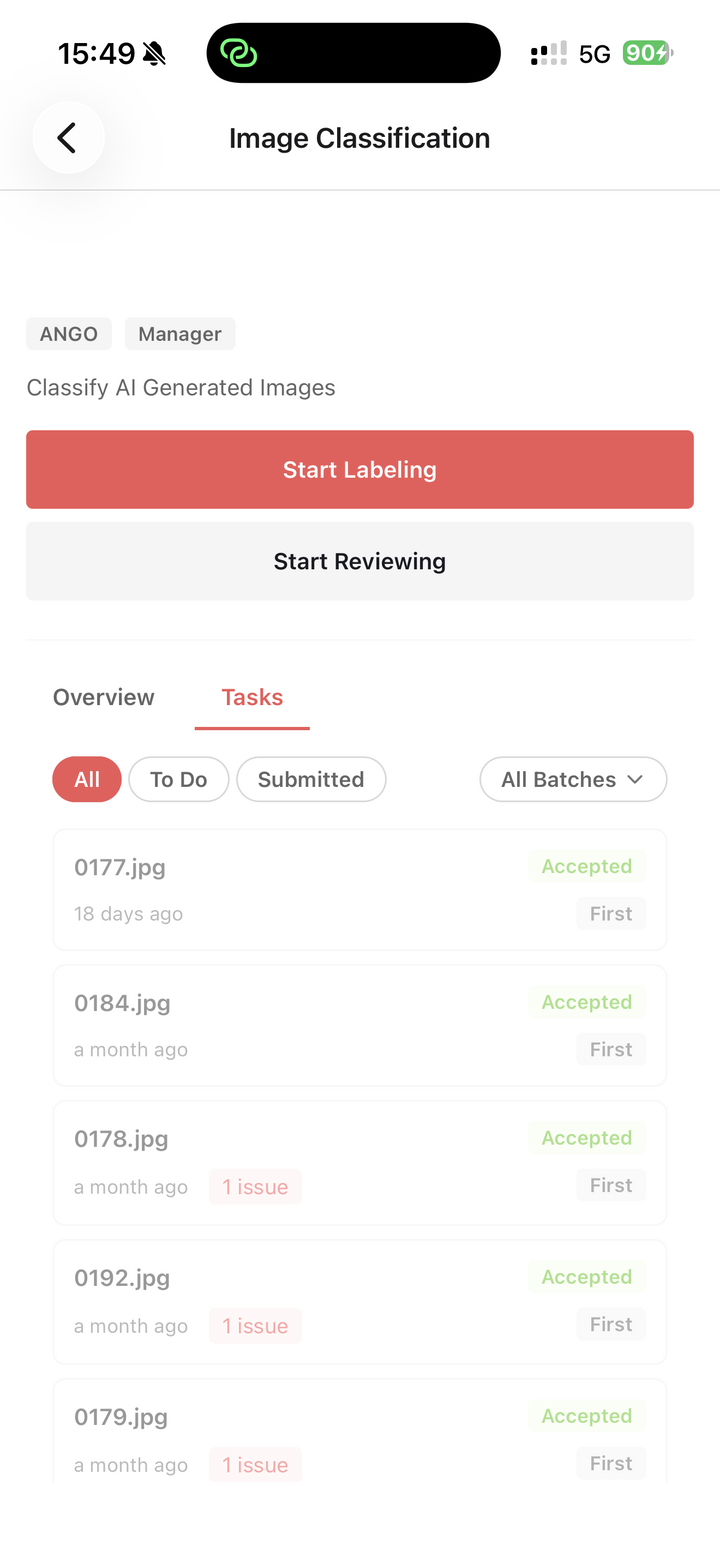
The *Tasks* tab shows tasks in the project. You can filter the list by:

* Status: *All*, *To Do*, or *Submitted*.
* Batch, when the project has batches.

Tap a task to open it directly in the mobile editor.

Tasks may show statuses such as *Todo*, *In Progress*, *Submitted*, *Accepted*, *Rejected*, *Fixed*, and *Skipped*, depending on the task's current state and your previous work on it.

<figure><img src="/files/kCkIysFYuUwfvUwLQJIS" alt="" width="375"><figcaption><p>The Tasks tab lets users filter project tasks and open a specific task directly.</p></figcaption></figure>


---

# Agent Instructions: Querying This Documentation

If you need additional information that is not directly available in this page, you can query the documentation dynamically by asking a question.

Perform an HTTP GET request on the current page URL with the `ask` query parameter:

```
GET https://docs.imerit.net/ango-hub-app/projects-and-tasks.md?ask=<question>
```

The question should be specific, self-contained, and written in natural language.
The response will contain a direct answer to the question and relevant excerpts and sources from the documentation.

Use this mechanism when the answer is not explicitly present in the current page, you need clarification or additional context, or you want to retrieve related documentation sections.