# Labeling and reviewing

The mobile editor opens when you start labeling, start reviewing, or open a task from the task list.

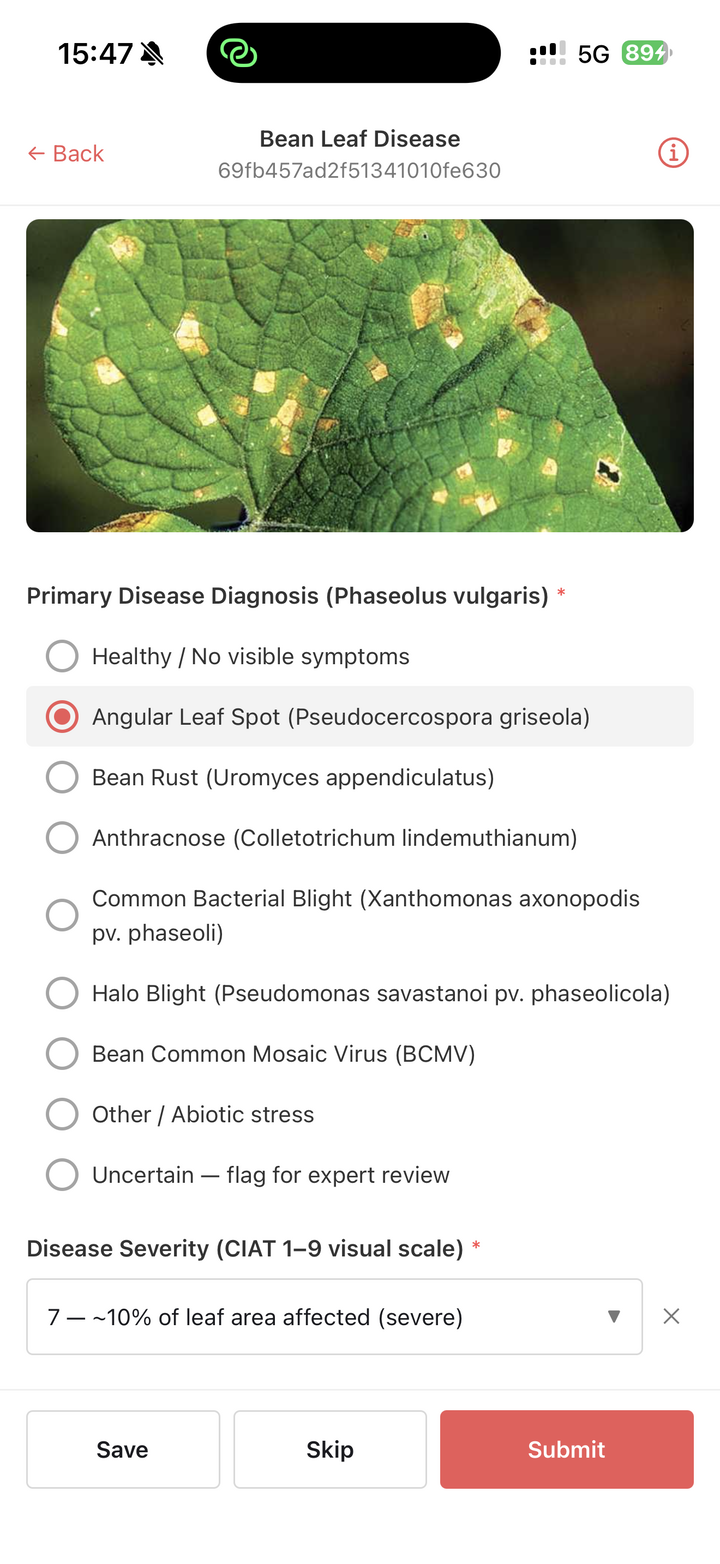
At the top of the editor, you will see the project name and an info button. The asset is shown below the header, followed by the classification questions for the task.

<figure><img src="/files/AcyH00vkavQPvFgILJaL" alt="" width="375"><figcaption><p>The mobile editor shows the task asset and the classification questions below it.</p></figcaption></figure>

## Supported assets

The app can display:

* Images
* Videos
* Audio
* PDFs
* Text assets

If the task uses an asset type that cannot be displayed on mobile, the app will show a message saying that the task requires the web app.

## Answering classifications

The app supports common classification tools, including radio buttons, checkboxes, dropdowns, tree dropdowns, text fields, and upload boxes.

Required questions are marked with an asterisk. If a required question is empty, the app will ask you to complete it before submitting.

If a text question has a regular expression validation rule, the app checks the answer before submission. Rich text and KaTeX text questions are shown as plain text inputs on mobile.

## Saving and submitting label tasks

Tap *Save* to save your progress without submitting the task.

Tap *Submit* to submit the task. If the task still has media uploading, the app will either ask you to wait or submit the task automatically after uploads finish, depending on the project configuration.

If skipping is enabled for the project, a *Skip* button is shown. Skipping discards unsaved changes for the current task.

{% hint style="warning" %}
There is no autosave. If you leave a task with unsaved changes, the app will ask whether you want to discard them.
{% endhint %}

## Reviewing tasks

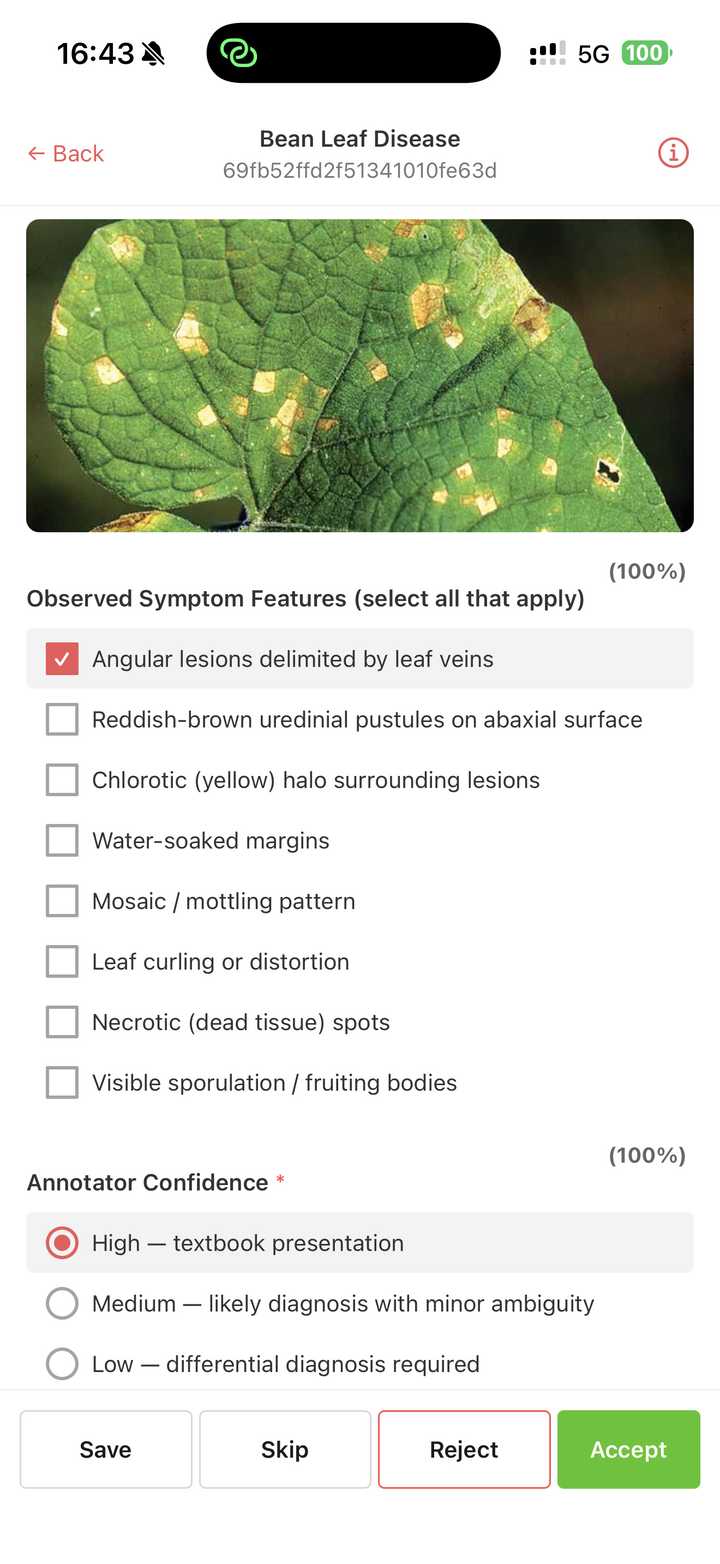
In Review stages, the bottom action bar shows review actions.

Tap *Accept* to accept the task. Tap *Reject* to reject it.

When rejecting a task, the app checks whether there is already an open issue for the current stage. If there is no open issue, the app prompts you to create one or reject without creating an issue.

<figure><img src="/files/6GalyvepuVTa6JY9PTVv" alt="" width="375"><figcaption><p>Review stages show the submitted answers and provide accept and reject actions.</p></figcaption></figure>

## Task information

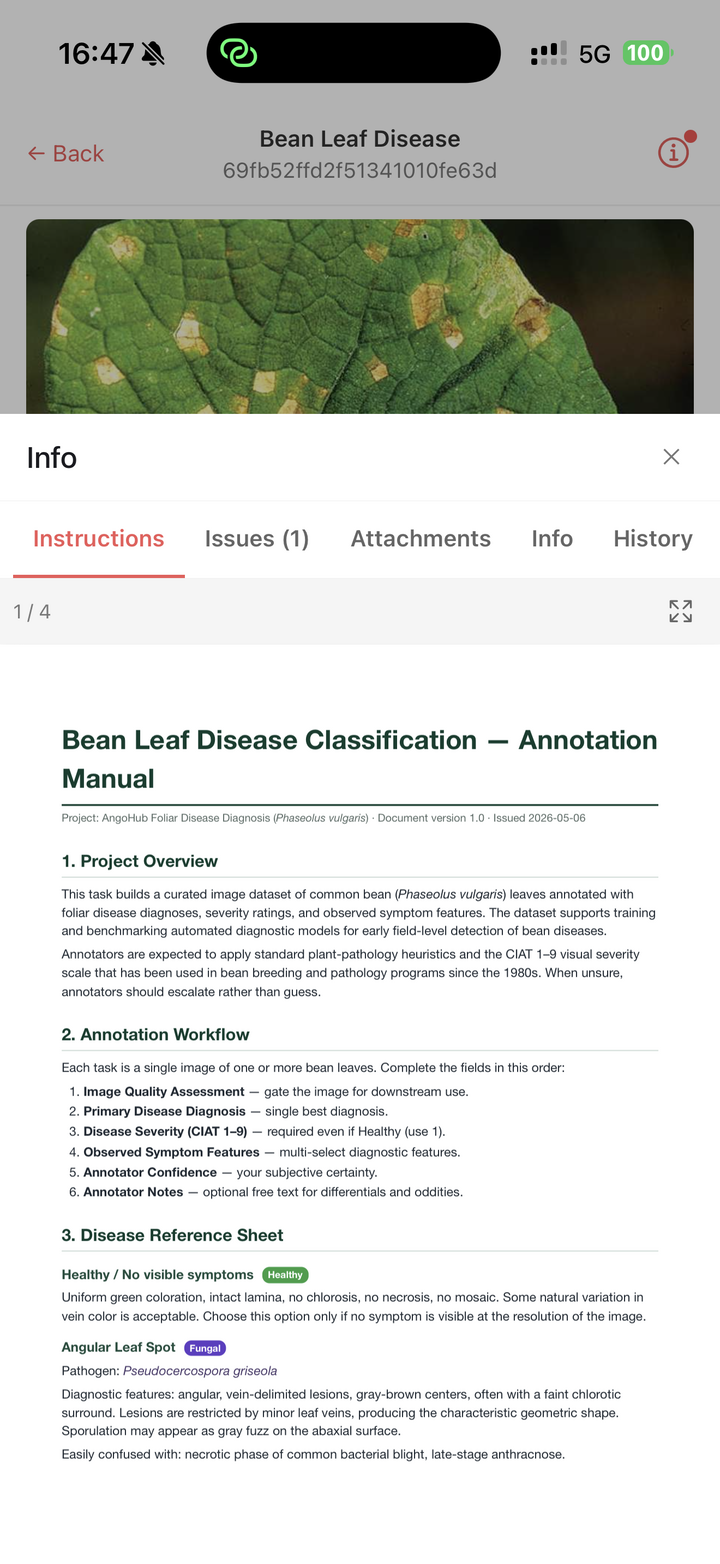
Tap the info button in the editor header to open the task information sheet.

From this sheet, you can open:

* *Instructions*: the project's instruction PDF, when one is available.
* *Issues*: open and resolved issues for the task.
* *Attachments*: task attachments.
* *Info*: task metadata.
* *History*: stage history for the task.

<figure><img src="/files/H6fZuSOnh7GFpW8Bvhxl" alt="" width="375"><figcaption><p>The task information sheet contains instructions, issues, attachments, metadata, and task history.</p></figcaption></figure>

## Issues

From the *Issues* tab, tap *Create Issue* to create a new issue for the task.

If the project uses error codes, the app shows the available error codes when creating the issue. You can also reply to issues and resolve them from the issue list.

Issue notifications are sent through Ango Hub in the same way as issues created from the web app.


---

# Agent Instructions: Querying This Documentation

If you need additional information that is not directly available in this page, you can query the documentation dynamically by asking a question.

Perform an HTTP GET request on the current page URL with the `ask` query parameter:

```
GET https://docs.imerit.net/ango-hub-app/labeling-and-reviewing.md?ask=<question>
```

The question should be specific, self-contained, and written in natural language.
The response will contain a direct answer to the question and relevant excerpts and sources from the documentation.

Use this mechanism when the answer is not explicitly present in the current page, you need clarification or additional context, or you want to retrieve related documentation sections.