# Captures and uploads

Upload-box questions in the Ango Hub App can collect photos, videos, and audio from the user's device.

The available buttons depend on the upload box's accepted formats. For example, a video upload box shows *Record Video*, while an image upload box shows *Take Photo*.

If an upload box is configured with file formats that are not supported on mobile, the app shows an unsupported-format message for that upload box.

## Supported upload-box media

The app supports common mobile media formats, including:

* Images such as `.jpg`, `.jpeg`, `.png`, `.heic`, `.webp`, `.gif`, `.tif`, and `.tiff`.
* Videos such as `.mp4`, `.mov`, `.avi`, `.mkv`, and `.webm`.
* Audio such as `.m4a`, `.aac`, `.mp3`, `.wav`, and `.ogg`.

The maximum file size for a single mobile upload is 4.5 GB.

## Capturing media

Tap the upload-box action button to capture or select media.

Depending on the accepted formats, the app can:

* Take a photo with the camera.
* Record a video with the camera and microphone.
* Record audio with the microphone.
* Choose an existing photo or video from the device library.

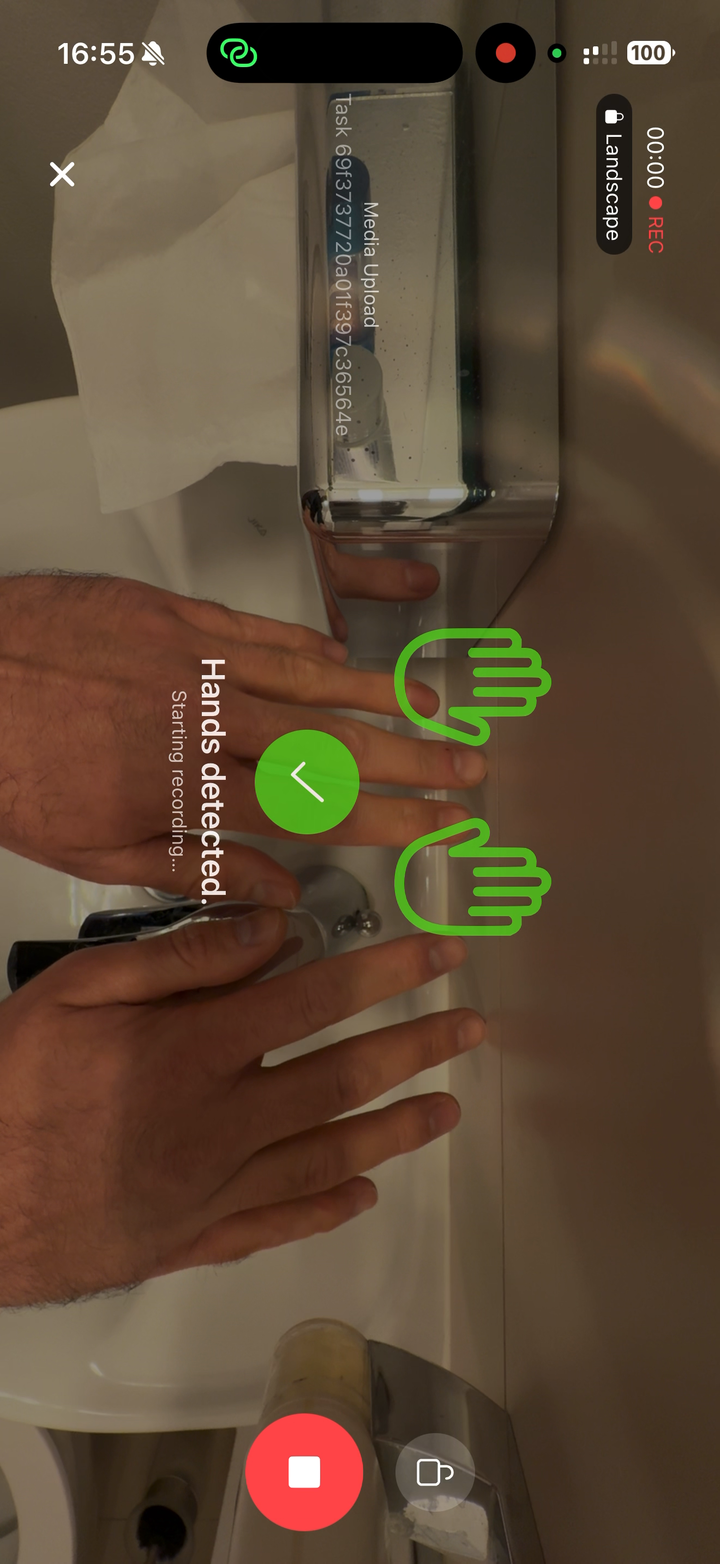
Video capture supports portrait and landscape recording. Before recording, the app asks you to match the selected orientation. Once recording starts, the recording orientation is locked.

For video capture, you can lock the on-screen controls during recording to avoid accidental taps.

<figure><img src="/files/wJmgJMwoEUaEq6iQlaQ8" alt="" width="375"><figcaption><p>During video capture, the app shows recording controls and any active Hand Detection guidance.</p></figcaption></figure>

## Choosing from the gallery

For image and video upload boxes, users can choose existing media from the device gallery.

On iOS, the app uses its own gallery picker so it respects the user's selected Photos access. If access is limited, tap *Manage Selection* to allow more photos or videos.

On Android, the app uses the system photo picker.

{% hint style="info" %}
When Hand Detection is enabled for a video upload box, gallery videos are not accepted for that upload box. The user must record the video in the app so the hand-detection check can run.
{% endhint %}

## Previewing a capture

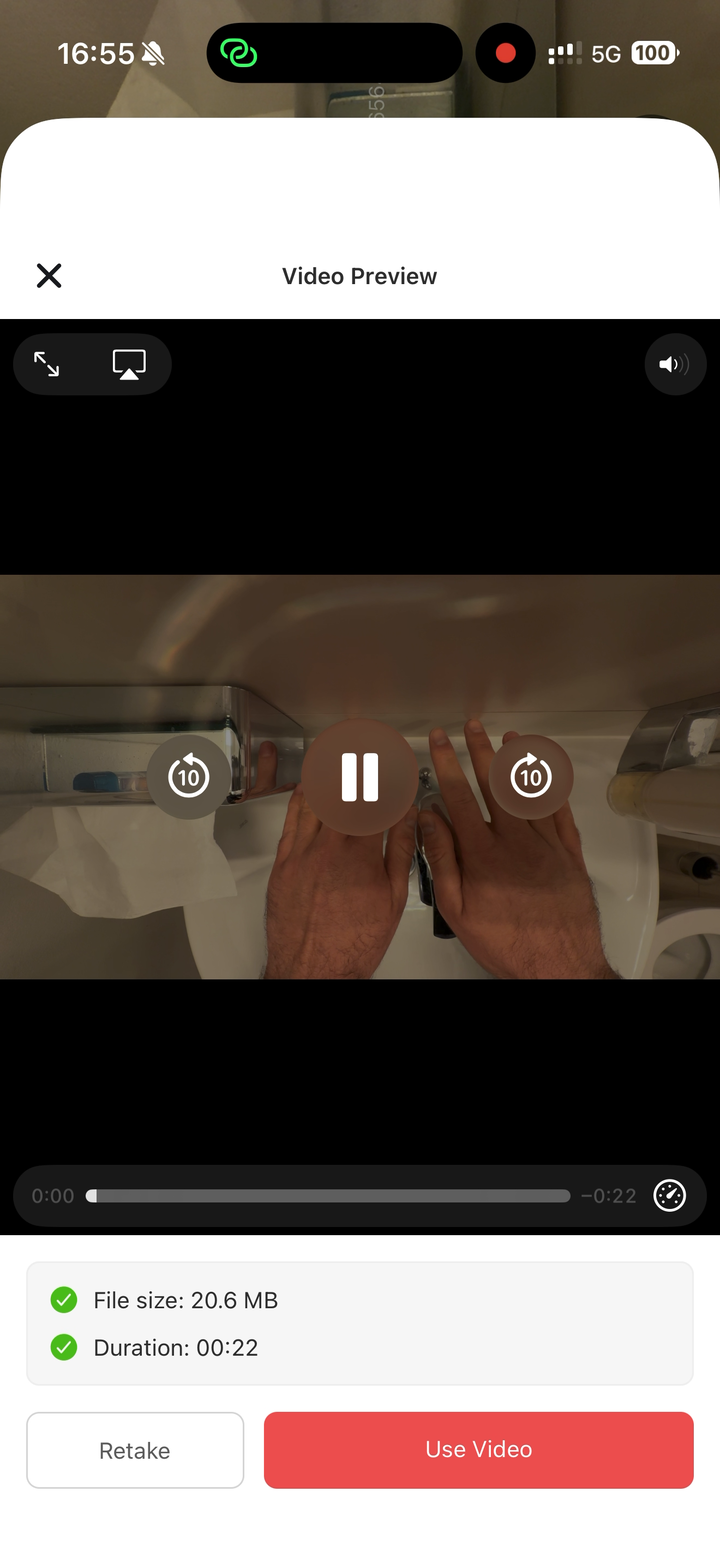
After taking a photo, recording video, recording audio, or choosing media from the gallery, the app opens a preview screen.

From the preview, tap *Use* to attach the media to the upload box. Tap *Retake* to discard it and capture again.

If *Save captures to gallery* is enabled in Settings, the app also saves a copy of captured photos and videos to the device gallery. The capture is still uploaded to Ango Hub even if saving the extra gallery copy fails.

<figure><img src="/files/IZbAhV0MX1h0MijkQ3Pu" alt="" width="375"><figcaption><p>The preview screen shows the captured media before the user attaches it to the upload box.</p></figcaption></figure>

## Uploading and submitting

After you tap *Use*, the media is staged on the device and queued for upload.

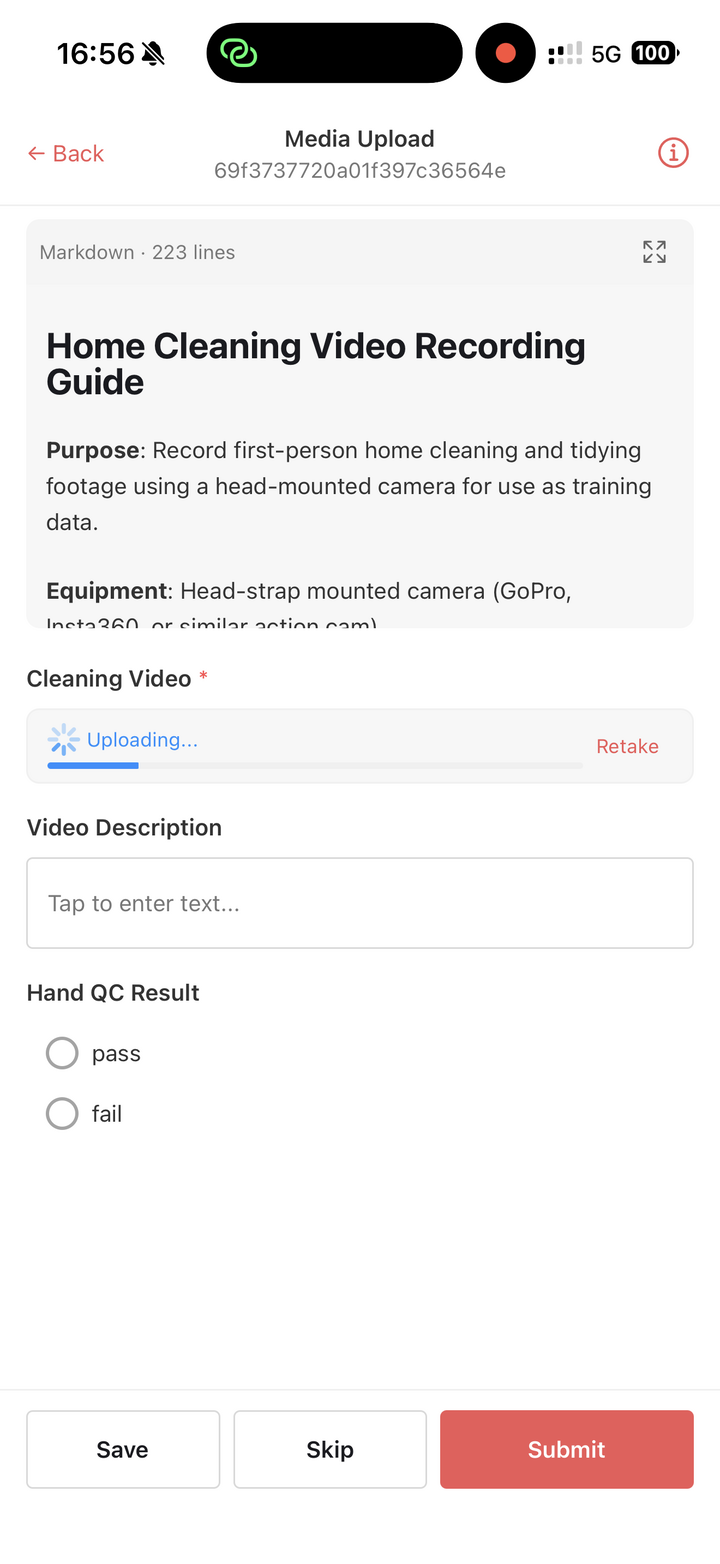
In the task, the upload box shows whether the file is ready to save, uploading, finalizing, uploaded, or failed.

<figure><img src="/files/kgYoqeVAljCDIEMHXNdM" alt="" width="375"><figcaption><p>After a capture is selected, the upload box shows the local file status before the task is saved or submitted.</p></figcaption></figure>

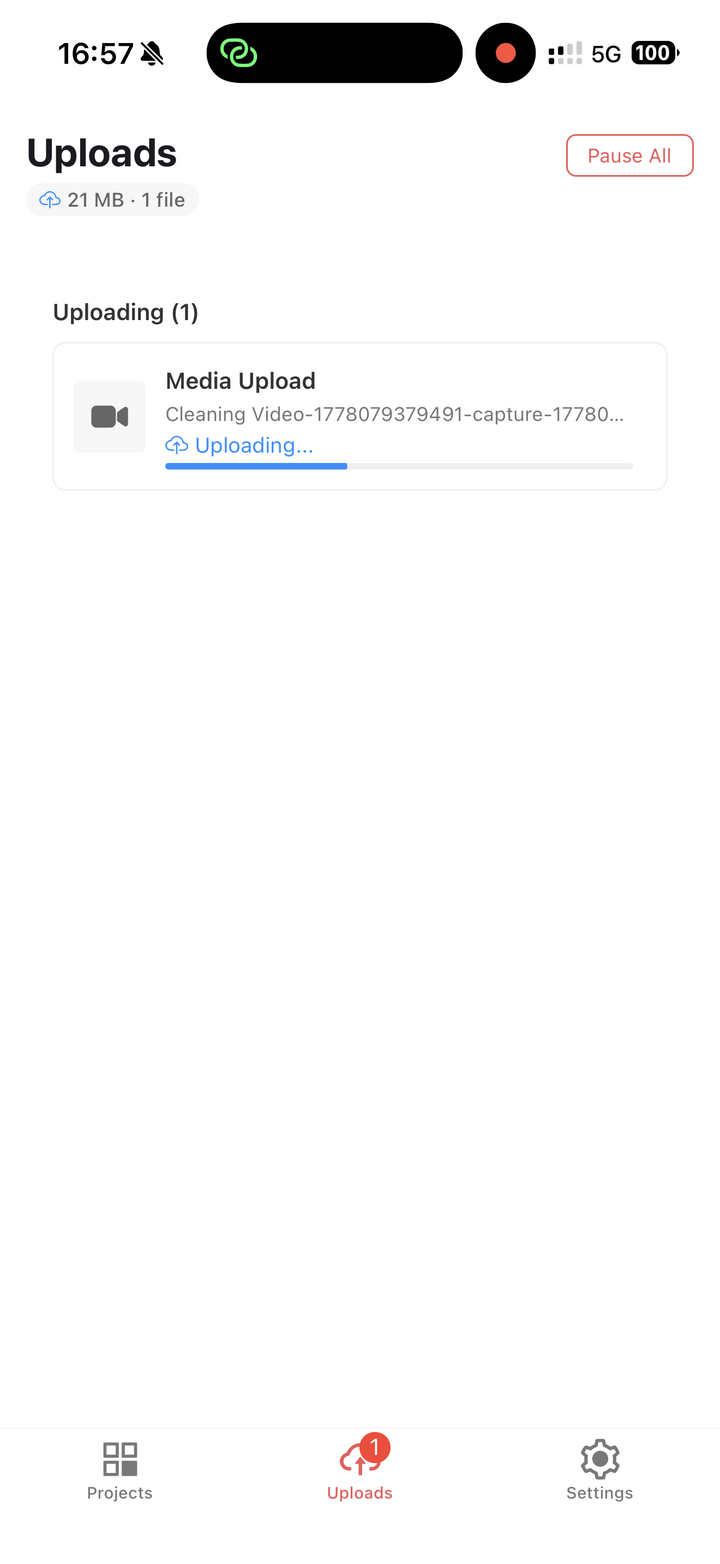
If you save or submit while media is still uploading, the app keeps tracking the upload in the *Uploads* tab. When the upload finishes, the app patches the task answer with the uploaded file URL.

The *Uploads* tab shows all pending and recently completed mobile uploads. From there, you can:
* Pause all uploads.
* Resume all uploads.
* Retry failed uploads.
* Cancel queued or failed uploads.
* Return to a task when a submission needs review.
* Retake or delete a capture that was blocked by Hand Detection.

Uploads automatically pause when the device is offline. If *Upload over Wi-Fi only* is enabled, uploads pause while the device is not connected to Wi-Fi.

Completed upload files are kept locally for a short retention window and then removed from the device.

<figure><img src="/files/IyifKF5tzewKCx7qsyiW" alt="" width="375"><figcaption><p>The Uploads tab tracks queued, submitted, failed, and recently completed mobile uploads.</p></figcaption></figure>

## Hand Detection for video collection

The app includes optional Hand Detection for video upload boxes.

When Hand Detection is enabled, the app checks for hands during in-app video recording. Recording waits until the required number of hands are visible. If hands leave the frame during recording, the app can play a warning sound, show an on-screen warning, and use haptic feedback.

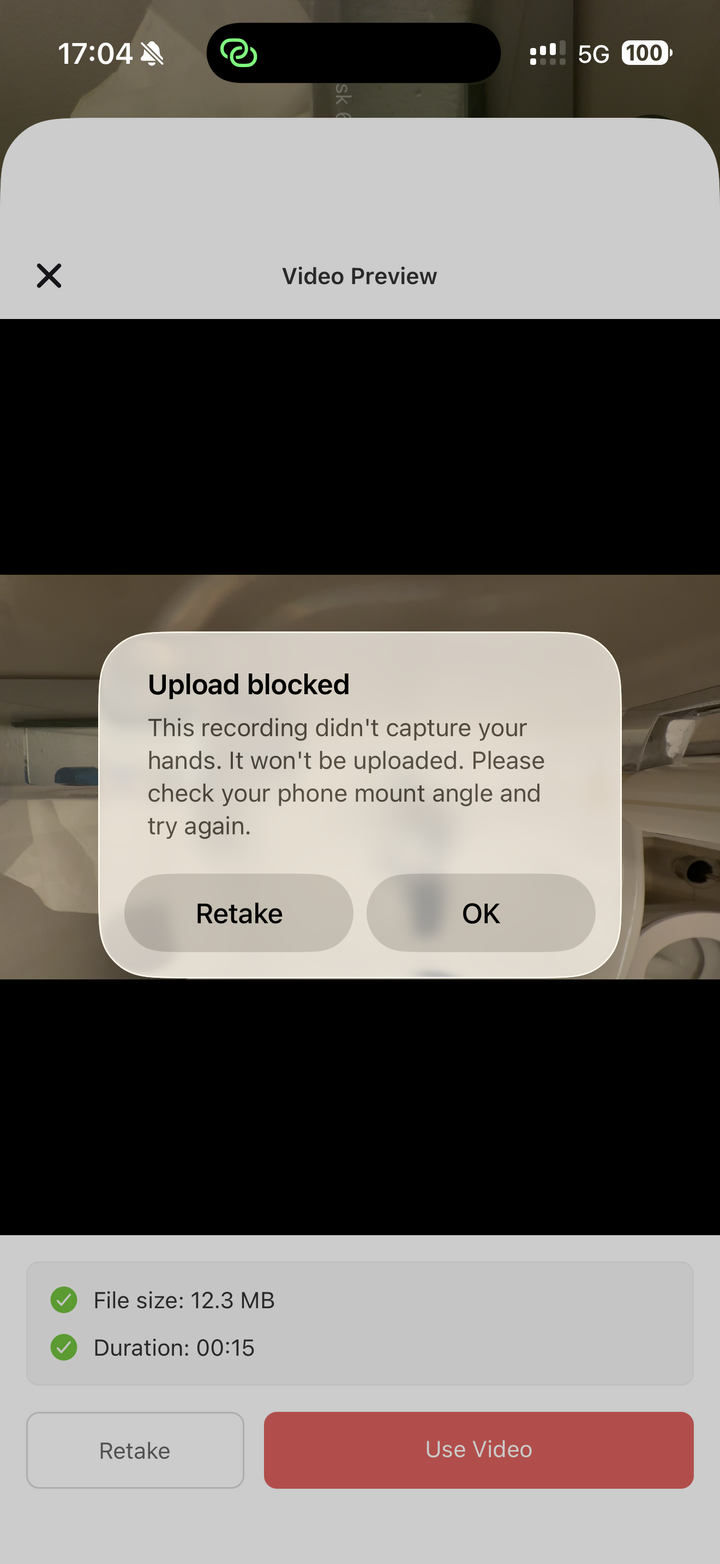
Hand Detection can also block uploads when the recorded video does not satisfy the configured hand-presence requirements. If that happens, the upload is not submitted and the user is asked to retake the recording.

<figure><img src="/files/n62GoT1I66y8ZF4xWz9I" alt="" width="375"><figcaption><p>When a Hand Detection check blocks an upload, the app asks the user to retake the recording.</p></figcaption></figure>

Users can turn Hand Detection on or off from *Settings*, and adjust advanced detection settings from *Settings* > *Advanced detection settings*.

{% hint style="warning" %}
Changing Hand Detection settings only affects new recordings. It does not change recordings already in progress or captures already queued for upload.
{% endhint %}


---

# Agent Instructions: Querying This Documentation

If you need additional information that is not directly available in this page, you can query the documentation dynamically by asking a question.

Perform an HTTP GET request on the current page URL with the `ask` query parameter:

```
GET https://docs.imerit.net/ango-hub-app/captures-and-uploads.md?ask=<question>
```

The question should be specific, self-contained, and written in natural language.
The response will contain a direct answer to the question and relevant excerpts and sources from the documentation.

Use this mechanism when the answer is not explicitly present in the current page, you need clarification or additional context, or you want to retrieve related documentation sections.